
ConvertToDouble Example Syntax C-Sharp ASP.NET | C# ConvertToDouble | Source Code
ConvertToDouble Example Syntax C-Sharp ASP.NET | C# ConvertToDouble | Source Code
Summary: – Illustrates using ConvertToDouble with Source Code Syntax Example in C-Sharp ASP.NET.
Purpose:
Converts positive and negative numbers into double data type
Syntax:
Convert.ToDouble(expression)
Convert.ToDouble(expression)
| Parameters | Description |
|---|---|
| expression | -1.79769313486231570E+308 through -4.94065645841246544E-324 for negative values; 4.94065645841246544E-324 through 1.79769313486231570E+308 for positive values. |
| Result Data Type | Description |
|---|---|
| double | double precision floating point number |
| Quick Example |
|---|
| Dim double1 As Double = Convert.ToDouble(1.33) TextBox1.Text = double1 Returns 1.33 |
Step 1: Click on cs to Cut-n-paste code into ConvertToDouble.aspx.cs
using System;
using System.IO;
using System.Data;

//****************************************************************************************
// Purpose: Converts positive and negative numbers into double data type
//
// Syntax: Convert.ToDouble(expression)
//
// Parameter1: expression - -1.79769313486231570E+308 through
// -4.94065645841246544E-324 for negative values;
// 4.94065645841246544E-324 through
// 1.79769313486231570E+308 for positive values.
//
// Result: double - double precision floating point number
//
// Quick Example:   Dim double1 As Double = Convert.ToDouble(1.33)
//       TextBox1.Text = double1 // Returns 1.33
//
//
//****************************************************************************************
// This example is from http://idealprogrammer.com
// It shows how you can use CDbl syntax in C-Sharp ASP.NET


partial class _ConvertToDouble : System.Web.UI.Page
{

    protected void Page_Load(object sender, System.EventArgs e)
    {

        Label1.Text = "Example #1: 	Convert.ToDouble(1.33) ";

        double double1 = Convert.ToDouble(1.33);

        TextBox1.Text = double1.ToString(); // Returns 1.33

        Label2.Text = "Example #2: 	Convert.ToDouble(-3.4) ";

        double Double2 = Convert.ToDouble(-3.4);

        TextBox2.Text = Double2.ToString(); // Returns -3.4

        Label3.Text = "Example #3: 	Convert.ToDouble(5)";

        double Double3 = Convert.ToDouble(5);

        TextBox3.Text = Double3.ToString(); // Returns 5


    }


} |
Step 2: Click on XML to Cut-n-paste code into ConvertToDouble.aspx
< %@ Page Language="VB" AutoEventWireup="false" CodeFile="ConvertToDouble.aspx.cs" Inherits="_ConvertToDouble" %> < !DOCTYPE html PUBLIC "-//W3C//DTD XHTML 1.0 Transitional//EN" "http://www.w3.org/TR/xhtml1/DTD/xhtml1-transitional.dtd"> <html xmlns="http://www.w3.org/1999/xhtml"> <head runat="server"> <title></title> </head> <body> <form id="form1" runat="server"> <div> <h1><asp:label ID="Label1" runat="server" Text="Label"></asp:label> </h1> <asp:textbox ID="TextBox1" runat="server"></asp:textbox><br /> <h1><asp:label ID="Label2" runat="server" Text="Label"></asp:label> </h1> <asp:textbox ID="TextBox2" runat="server"></asp:textbox><br /> <h1><asp:label ID="Label3" runat="server" Text="Label"></asp:label> </h1> <asp:textbox ID="TextBox3" runat="server"></asp:textbox><br /> </div> </form> </body> </html> |
Prerequistes:
- Install Visual Web Developer 2010
- Install SQL Server Express
- Download Northwind and Pubs Databases
- Attach Northwind Database to Databases in Sql Express
- Attach pubs Database to Databases in Sql Express
Notes:
- You can build your own library of syntax examples by using same web site over and over and just add new web forms to it.
Instructions:
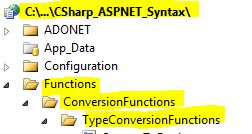
|
- Use Visual Web Developer 2010
- Create new web site;
- Click File/New Web Site
- Select ASP.NET Website Template
- Select C-Sharp for Language
- name of Web Site could be CSharp_ASPNET_Syntax.
- Add New folder named “Functions”
- Right-click project name in solution explorer;
- add new folder;
- name of folder could be: Functions
- Add New subfolder named “ConversionFunctions”
- Right-click Functions folder in solution explorer;
- add new folder;
- name of folder could be: ConversionFunctions
- Add New subfolder named “TypeConversionFunctions”
- Right-click Functions folder in solution explorer;
- add new folder;
- name of folder could be: TypeConversionFunctions
- Add Web Form Named ConvertToDouble to TypeConversionFunctions folder
- Right-click TypeConversionFunctions folder;
- add new item;
- Select Web Form
- Check place code behind in separate file
- Web Form name could be ConvertToDouble
- Click on cs in step 1 at the top of this page to copy code into code-behind ConvertToDouble.aspx.cs
- Click on XML in step 2 above to copy code into web form ConvertToDouble.aspx
- Right-click on ConvertToDouble.aspx in solution explorer and select view in browser
