


Read Excel Files in ASP.NET MVC Using IronXL

This tutorial guides developers on implementing Excel file parsing in ASP.NET MVC apps using IronXL.
Quickstart: Load and Convert Excel Sheet to DataTable in MVC
This example shows how to get started in seconds: load an Excel workbook, pick its first worksheet, and convert it to a System.Data.DataTable using IronXL — no Interop, no hassle.
 Get started making PDFs with NuGet now:
Install IronXL with NuGet Package Manager
Copy and run this code snippet.
var dataTable = IronXL.WorkBook.Load("CustomerData.xlsx").DefaultWorkSheet.ToDataTable(true);Deploy to test on your live environment

Minimal Workflow (5 steps)
- Install C# library to read Excel file in ASP.NET
- Load and access the targeted sheet in Excel file
- Access
ToDataTablemethod and return it toView - Display Excel data on a web page by using loop
- Iterate through all data and build an HTML table from it
Create an ASP.NET Project
Using Visual Studio 2022 (or similar product versions), create a new ASP.NET project. Add additional NuGet packages and source code as needed for the particular project.
Install IronXL Library
Commencez à utiliser IronXL dans votre projet aujourd'hui avec un essai gratuit.
After creating the new project, we have to install the IronXL library. Follow the steps below to install the IronXL library. Open the NuGet Package Manager Console and run the following command:
Install-Package IronXL.Excel
Reading Excel file
Open the default controller in your ASP.NET project (e.g., HomeController.cs) and replace the Index method with the following code:
public ActionResult Index()
{
    // Load the Excel workbook from a specified path.
    WorkBook workBook = WorkBook.Load(@"C:\Files\Customer Data.xlsx");

    // Access the first worksheet from the workbook.
    WorkSheet workSheet = workBook.WorkSheets.First();

    // Convert the worksheet data to a DataTable object.
    var dataTable = workSheet.ToDataTable();

    // Send the DataTable to the view for rendering.
    return View(dataTable);
}
public ActionResult Index()
{
// Load the Excel workbook from a specified path.
WorkBook workBook = WorkBook.Load(@"C:\Files\Customer Data.xlsx");
// Access the first worksheet from the workbook.
WorkSheet workSheet = workBook.WorkSheets.First();
// Convert the worksheet data to a DataTable object.
var dataTable = workSheet.ToDataTable();
// Send the DataTable to the view for rendering.
return View(dataTable);
}Public Function Index() As ActionResult
' Load the Excel workbook from a specified path.
Dim workBook As WorkBook = WorkBook.Load("C:\Files\Customer Data.xlsx")
' Access the first worksheet from the workbook.
Dim workSheet As WorkSheet = workBook.WorkSheets.First()
' Convert the worksheet data to a DataTable object.
Dim dataTable = workSheet.ToDataTable()
' Send the DataTable to the view for rendering.
Return View(dataTable)
End FunctionIn the Index action method, we load the Excel file using IronXL's Load method. The path of the Excel file (including the filename) is provided as a parameter to the method call. Next, we select the first Excel sheet as the working sheet and load the data contained in it into a DataTable object. Lastly, the DataTable is sent to the frontend.
Display Excel Data on a Web Page
The next example shows how to display the DataTable returned in the previous example in a web browser.
The working Excel file that will be used in this example is depicted below:
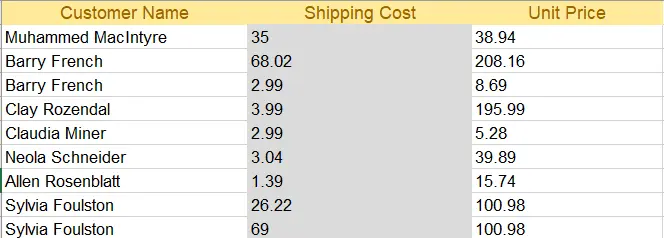
Excel file
Open the index.cshtml (index view) and replace the code with the following HTML code.
@{
    ViewData["Title"] = "Home Page";
}

@using System.Data
@model DataTable

<div class="text-center">
    <h1 class="display-4">Welcome to IronXL Read Excel MVC</h1>
</div>
<table class="table table-dark">
    <tbody>
        @foreach (DataRow row in Model.Rows)
        {
            <tr>
                @for (int i = 0; i < Model.Columns.Count; i++)
                {
                    <td>@row[i]</td>
                }
            </tr>
        }

    </tbody>
</table>
@{
ViewData["Title"] = "Home Page";
}
@using System.Data
@model DataTable
<div class="text-center">
<h1 class="display-4">Welcome to IronXL Read Excel MVC</h1>
</div>
<table class="table table-dark">
<tbody>
@foreach (DataRow row in Model.Rows)
{
<tr>
@for (int i = 0; i < Model.Columns.Count; i++)
{
<td>@row[i]</td>
}
</tr>
}
</tbody>
</table>@
If True Then
ViewData("Title") = "Home Page"
End If
'INSTANT VB WARNING: An assignment within expression was extracted from the following statement:
'ORIGINAL LINE: using System.Data model DataTable <div class="text-center"> <h1 class="display-4"> Welcome to IronXL Read Excel MVC</h1> </div> <table class="table table-dark"> <tbody> foreach(DataRow row in Model.Rows)
"display-4"> Welcome [to] IronXL Read Excel MVC</h1> </div> <table class="table table-dark"> (Of tbody) foreach(DataRow row in Model.Rows)
If True Then
'INSTANT VB WARNING: An assignment within expression was extracted from the following statement:
'ORIGINAL LINE: using System.Data model DataTable <div class="text-center"> <h1 class="display-4"> Welcome to IronXL Read Excel MVC</h1> </div> <table class
"text-center"> <h1 class="display-4"> Welcome [to] IronXL Read Excel MVC</h1> </div> <table class
[using] System.Data model DataTable <div class="text-center"> <h1 class
'INSTANT VB TODO TASK: Local functions are not converted by Instant VB:
' (Of tr) @for(int i = 0; i < Model.Columns.Count; i++)
' {
' <td> @row[i]</td>
' }
</tr>
End If
'INSTANT VB TODO TASK: The following line uses invalid syntax:
' </tbody> </table>The above code uses the DataTable returned from the Index method as a model. Each row from the table is printed on the webpage using a @for loop, including Bootstrap formatting for decoration.
Running the project will produce the results shown below.
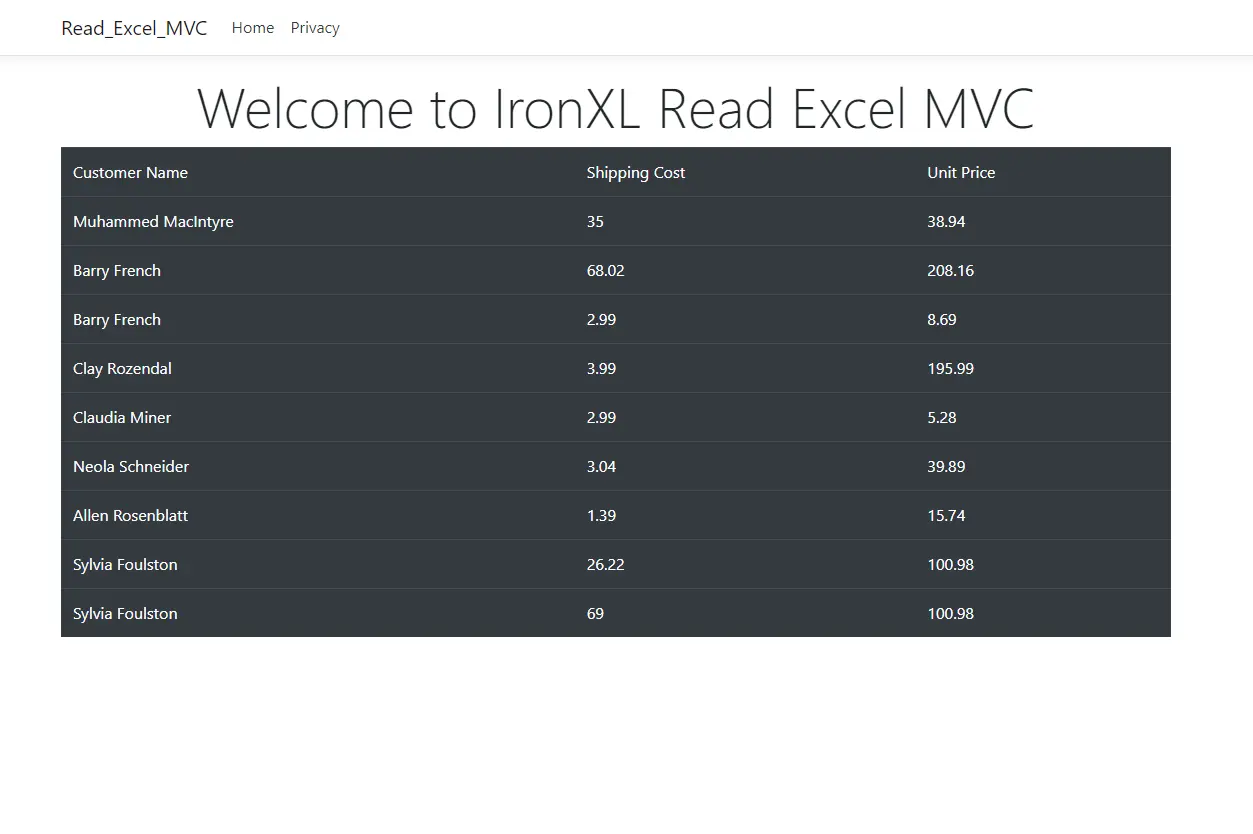
Bootstrap Table
Questions Fréquemment Posées
Comment puis-je lire des fichiers Excel dans ASP.NET MVC sans utiliser Interop?
Vous pouvez lire des fichiers Excel dans ASP.NET MVC sans utiliser Interop en utilisant la bibliothèque IronXL. Tout d'abord, installez IronXL via NuGet puis utilisez la méthode WorkBook.Load pour charger le fichier Excel. Accédez à la feuille de calcul et convertissez-la en DataTable pour un traitement ultérieur.
Quelles sont les étapes nécessaires pour afficher des données Excel sur une page web avec ASP.NET MVC?
Pour afficher les données Excel sur une page web avec ASP.NET MVC, chargez le fichier Excel avec IronXL, convertissez-le en DataTable, et passez-le à la vue. Utilisez la syntaxe Razor dans la vue pour itérer sur le DataTable et afficher les données en tant que tableau HTML.
Comment installer la bibliothèque nécessaire pour gérer les fichiers Excel dans une application ASP.NET?
Pour gérer les fichiers Excel dans une application ASP.NET, installez la bibliothèque IronXL en ouvrant la console du gestionnaire de packages NuGet dans Visual Studio et en exécutant la commande Install-Package IronXL.Excel.
Quel est l'avantage d'utiliser IronXL pour les opérations Excel dans ASP.NET MVC?
IronXL simplifie les opérations Excel dans ASP.NET MVC en fournissant une API facile à utiliser qui permet de lire, écrire et manipuler des fichiers Excel sans avoir besoin d'Excel Interop, améliorant ainsi les performances et réduisant la complexité.
Comment puis-je convertir une feuille de calcul Excel en un DataTable dans ASP.NET MVC?
Dans ASP.NET MVC, après avoir chargé un fichier Excel avec IronXL, vous pouvez convertir une feuille de calcul en DataTable en utilisant la méthode ToDataTable, ce qui facilite la gestion et la manipulation des données.
IronXL peut-il être utilisé dans les applications ASP.NET Core MVC pour le traitement Excel?
Oui, IronXL est compatible avec les applications ASP.NET Core MVC et peut être utilisé pour lire et manipuler efficacement les fichiers Excel sans dépendre d'Excel Interop.
Quelles modifications de code sont requises dans le contrôleur pour lire des fichiers Excel?
Modifiez le contrôleur par défaut, comme HomeController.cs, en utilisant WorkBook.Load d'IronXL pour charger le classeur Excel et convertir les données de la feuille en un DataTable pour les passer à la vue.
Comment IronXL améliore-t-il le processus de lecture des fichiers Excel dans ASP.NET?
IronXL améliore le processus de lecture des fichiers Excel dans ASP.NET en offrant une API simple qui élimine le besoin d'Excel Interop, permettant une lecture, une écriture et une manipulation sans faille des données Excel.


