


Read Excel Files in ASP.NET MVC Using IronXL

This tutorial guides developers on implementing Excel file parsing in ASP.NET MVC apps using IronXL.
Quickstart: Load and Convert Excel Sheet to DataTable in MVC
This example shows how to get started in seconds: load an Excel workbook, pick its first worksheet, and convert it to a System.Data.DataTable using IronXL — no Interop, no hassle.
 Get started making PDFs with NuGet now:
Install IronXL with NuGet Package Manager
Copy and run this code snippet.
var dataTable = IronXL.WorkBook.Load("CustomerData.xlsx").DefaultWorkSheet.ToDataTable(true);Deploy to test on your live environment

Minimal Workflow (5 steps)
- Install C# library to read Excel file in ASP.NET
- Load and access the targeted sheet in Excel file
- Access
ToDataTablemethod and return it toView - Display Excel data on a web page by using loop
- Iterate through all data and build an HTML table from it
Create an ASP.NET Project
Using Visual Studio 2022 (or similar product versions), create a new ASP.NET project. Add additional NuGet packages and source code as needed for the particular project.
Install IronXL Library
今天在您的项目中使用 IronXL,免费试用。
After creating the new project, we have to install the IronXL library. Follow the steps below to install the IronXL library. Open the NuGet Package Manager Console and run the following command:
Install-Package IronXL.Excel
Reading Excel file
Open the default controller in your ASP.NET project (e.g., HomeController.cs) and replace the Index method with the following code:
public ActionResult Index()
{
    // Load the Excel workbook from a specified path.
    WorkBook workBook = WorkBook.Load(@"C:\Files\Customer Data.xlsx");

    // Access the first worksheet from the workbook.
    WorkSheet workSheet = workBook.WorkSheets.First();

    // Convert the worksheet data to a DataTable object.
    var dataTable = workSheet.ToDataTable();

    // Send the DataTable to the view for rendering.
    return View(dataTable);
}
public ActionResult Index()
{
// Load the Excel workbook from a specified path.
WorkBook workBook = WorkBook.Load(@"C:\Files\Customer Data.xlsx");
// Access the first worksheet from the workbook.
WorkSheet workSheet = workBook.WorkSheets.First();
// Convert the worksheet data to a DataTable object.
var dataTable = workSheet.ToDataTable();
// Send the DataTable to the view for rendering.
return View(dataTable);
}Public Function Index() As ActionResult
' Load the Excel workbook from a specified path.
Dim workBook As WorkBook = WorkBook.Load("C:\Files\Customer Data.xlsx")
' Access the first worksheet from the workbook.
Dim workSheet As WorkSheet = workBook.WorkSheets.First()
' Convert the worksheet data to a DataTable object.
Dim dataTable = workSheet.ToDataTable()
' Send the DataTable to the view for rendering.
Return View(dataTable)
End FunctionIn the Index action method, we load the Excel file using IronXL's Load method. The path of the Excel file (including the filename) is provided as a parameter to the method call. Next, we select the first Excel sheet as the working sheet and load the data contained in it into a DataTable object. Lastly, the DataTable is sent to the frontend.
Display Excel Data on a Web Page
The next example shows how to display the DataTable returned in the previous example in a web browser.
The working Excel file that will be used in this example is depicted below:
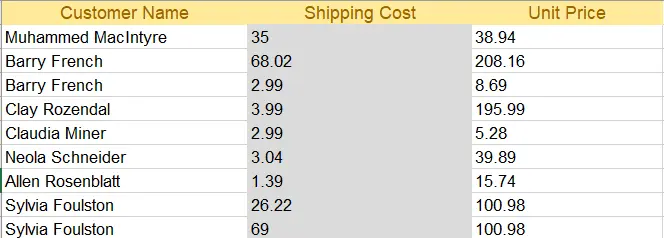
Excel file
Open the index.cshtml (index view) and replace the code with the following HTML code.
@{
    ViewData["Title"] = "Home Page";
}

@using System.Data
@model DataTable

<div class="text-center">
    <h1 class="display-4">Welcome to IronXL Read Excel MVC</h1>
</div>
<table class="table table-dark">
    <tbody>
        @foreach (DataRow row in Model.Rows)
        {
            <tr>
                @for (int i = 0; i < Model.Columns.Count; i++)
                {
                    <td>@row[i]</td>
                }
            </tr>
        }

    </tbody>
</table>
@{
ViewData["Title"] = "Home Page";
}
@using System.Data
@model DataTable
<div class="text-center">
<h1 class="display-4">Welcome to IronXL Read Excel MVC</h1>
</div>
<table class="table table-dark">
<tbody>
@foreach (DataRow row in Model.Rows)
{
<tr>
@for (int i = 0; i < Model.Columns.Count; i++)
{
<td>@row[i]</td>
}
</tr>
}
</tbody>
</table>@
If True Then
ViewData("Title") = "Home Page"
End If
'INSTANT VB WARNING: An assignment within expression was extracted from the following statement:
'ORIGINAL LINE: using System.Data model DataTable <div class="text-center"> <h1 class="display-4"> Welcome to IronXL Read Excel MVC</h1> </div> <table class="table table-dark"> <tbody> foreach(DataRow row in Model.Rows)
"display-4"> Welcome [to] IronXL Read Excel MVC</h1> </div> <table class="table table-dark"> (Of tbody) foreach(DataRow row in Model.Rows)
If True Then
'INSTANT VB WARNING: An assignment within expression was extracted from the following statement:
'ORIGINAL LINE: using System.Data model DataTable <div class="text-center"> <h1 class="display-4"> Welcome to IronXL Read Excel MVC</h1> </div> <table class
"text-center"> <h1 class="display-4"> Welcome [to] IronXL Read Excel MVC</h1> </div> <table class
[using] System.Data model DataTable <div class="text-center"> <h1 class
'INSTANT VB TODO TASK: Local functions are not converted by Instant VB:
' (Of tr) @for(int i = 0; i < Model.Columns.Count; i++)
' {
' <td> @row[i]</td>
' }
</tr>
End If
'INSTANT VB TODO TASK: The following line uses invalid syntax:
' </tbody> </table>The above code uses the DataTable returned from the Index method as a model. Each row from the table is printed on the webpage using a @for loop, including Bootstrap formatting for decoration.
Running the project will produce the results shown below.
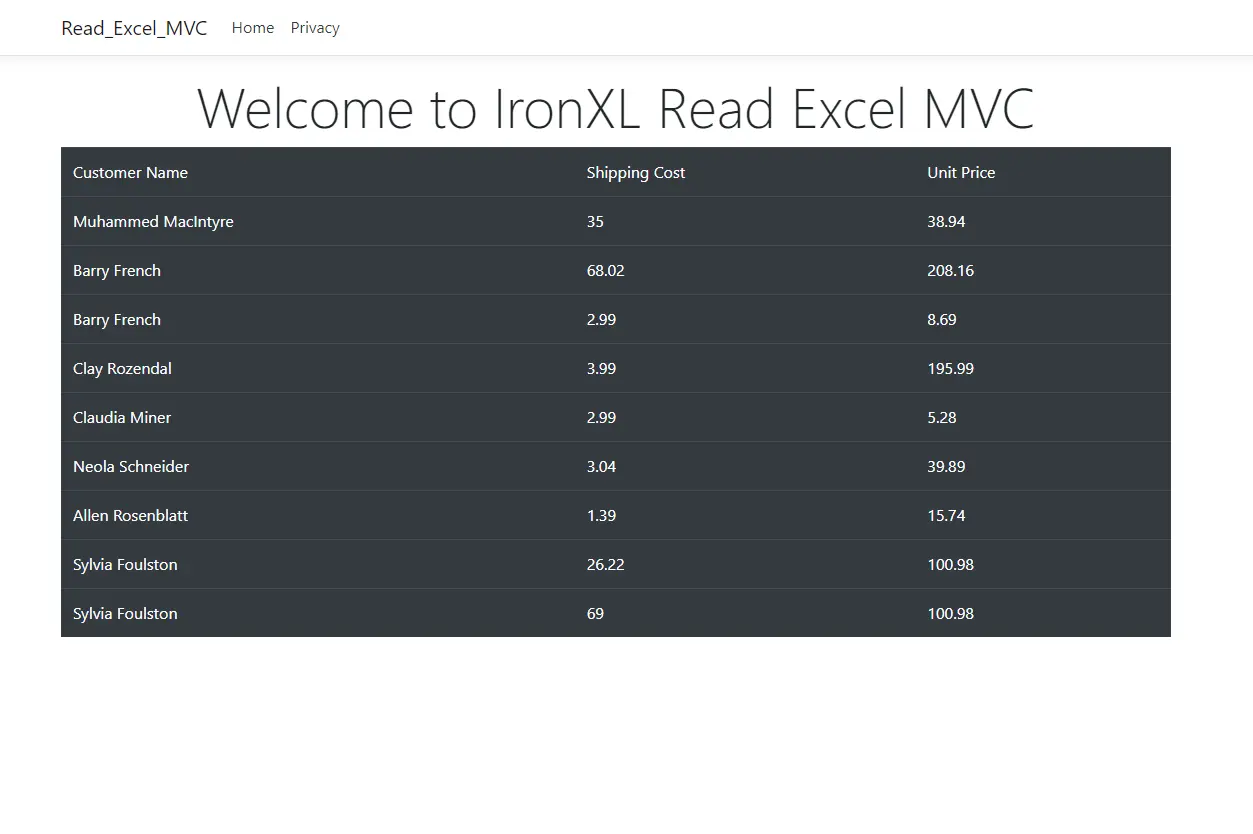
Bootstrap Table
常见问题解答
如何在 ASP.NET MVC 中不使用 Interop 阅读 Excel 文件?
您可以通过使用 IronXL 库在 ASP.NET MVC 中阅读 Excel 文件而无需使用 Interop。首先,通过 NuGet 安装 IronXL,然后使用 WorkBook.Load 方法加载 Excel 文件。访问工作表并将其转换为 DataTable 进行进一步处理。
在使用 ASP.NET MVC 的网页上显示 Excel 数据需要哪些步骤?
要在使用 ASP.NET MVC 的网页上显示 Excel 数据,请使用 IronXL 加载 Excel 文件,将其转换为 DataTable ,并将其传递给视图。在视图中使用 Razor 语法遍历 DataTable 并将数据渲染为 HTML 表格。
如何在 ASP.NET 应用程序中安装必要的库来处理 Excel 文件?
要在 ASP.NET 应用程序中处理 Excel 文件,请通过 Visual Studio 打开 NuGet 包管理器控制台并执行命令 Install-Package IronXL.Excel 来安装 IronXL 库。
在 ASP.NET MVC 中使用 IronXL 进行 Excel 操作的优势是什么?
IronXL 通过提供易于使用的 API,从而无需 Excel Interop,简化了 ASP.NET MVC 中的 Excel 操作,提高了性能并降低了复杂性。
如何在 ASP.NET MVC 中将 Excel 工作表转换为 DataTable?
在 ASP.NET MVC 中,加载 Excel 文件后,您可以使用 ToDataTable 方法将工作表转换为 DataTable ,以简化数据处理和操作。
IronXL 能否在 ASP.NET Core MVC 应用程序中用于 Excel 处理?
是的,IronXL 兼容 ASP.NET Core MVC 应用程序,并且可以有效地读取和操纵 Excel 文件,而无需依赖 Excel Interop。
在控制器中需要对读取 Excel 文件进行哪些代码修改?
修改默认控制器,例如 HomeController.cs,使用 IronXL 的 WorkBook.Load 加载 Excel 工作簿,并将工作表数据转换为 DataTable 以传递到视图。
IronXL 如何改进在 ASP.NET 中读取 Excel 文件的过程?
IronXL 通过提供消除对 Excel Interop 的需求的简化 API,增强了在 ASP.NET 中读取 Excel 文件的过程,允许无缝读取、编写和操作 Excel 数据。


