Unlock AI for help to draft, transform, translate, and improve content, with a powerful assistant at your side.
Activate the AI Assistant Block
The Jetpack AI Assistant Block is part of the Jetpack Blocks suite; it is activated by default if Jetpack Blocks are active on your site. See our Jetpack Blocks article to learn about the available blocks and how to activate them.
Jetpack Blocks require the Block Editor (also referred to as the Gutenberg editor). If you’ve installed the Classic Editor plugin, you have a few options:
- Deactivate the Classic Editor: Go to Plugins → Installed Plugins in your WP Admin and deactivate the Classic Editor plugin.
- Enable both editors: If you prefer flexibility, navigate to Settings → Writing in your WP Admin (not the menu under Jetpack settings). Set Allow users to switch editors to Yes. You will only see these options if you have the Classic Editor plugin installed and active.
Some custom themes or plugins may prevent you from using the Block Editor. In that case, please contact the support team for the plugin or theme for further assistance.
For more details, see Using Blocks and the Classic Editor.
Note: The Jetpack AI Assistant block is only available when Jetpack is properly connected to your site. If Jetpack is not connected or if the connection is broken, this block will not be accessible. For assistance with Jetpack connection issues, please refer to this guide.
Get started with Jetpack AI Assistant
To use the Jetpack AI Assistant, follow these steps:
- Create a new post or page, or edit an existing one.
- Insert the Jetpack AI Assistant block. For detailed instructions on adding a block, refer to our Jetpack Blocks guide.
- From the block’s toolbar, click on Write with AI… to open a dropdown list of writing prompts.
- Select a starting option from the list or type in the input field to create your custom prompt.
- After writing your prompt, click Send to initiate the AI content generation.
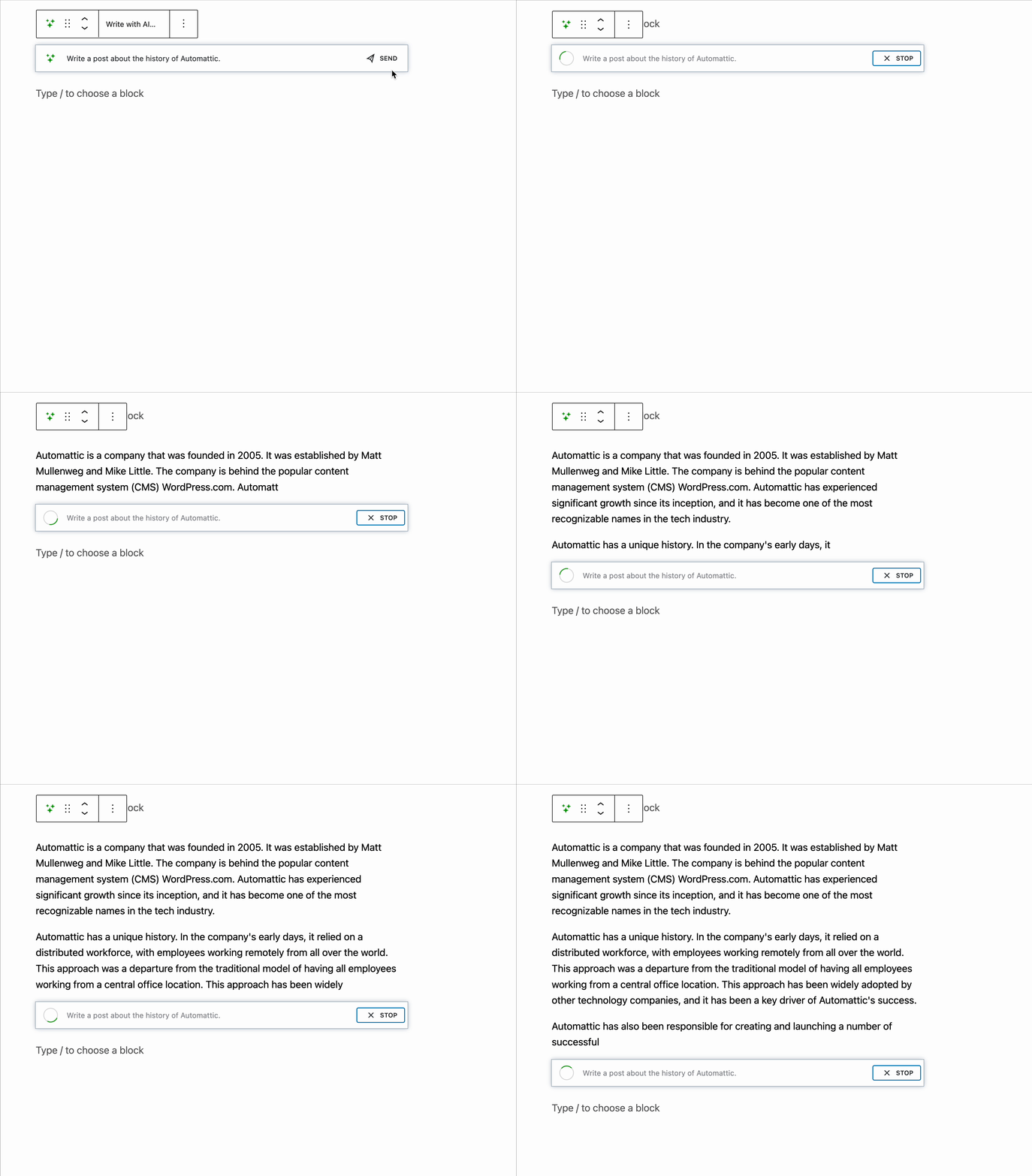
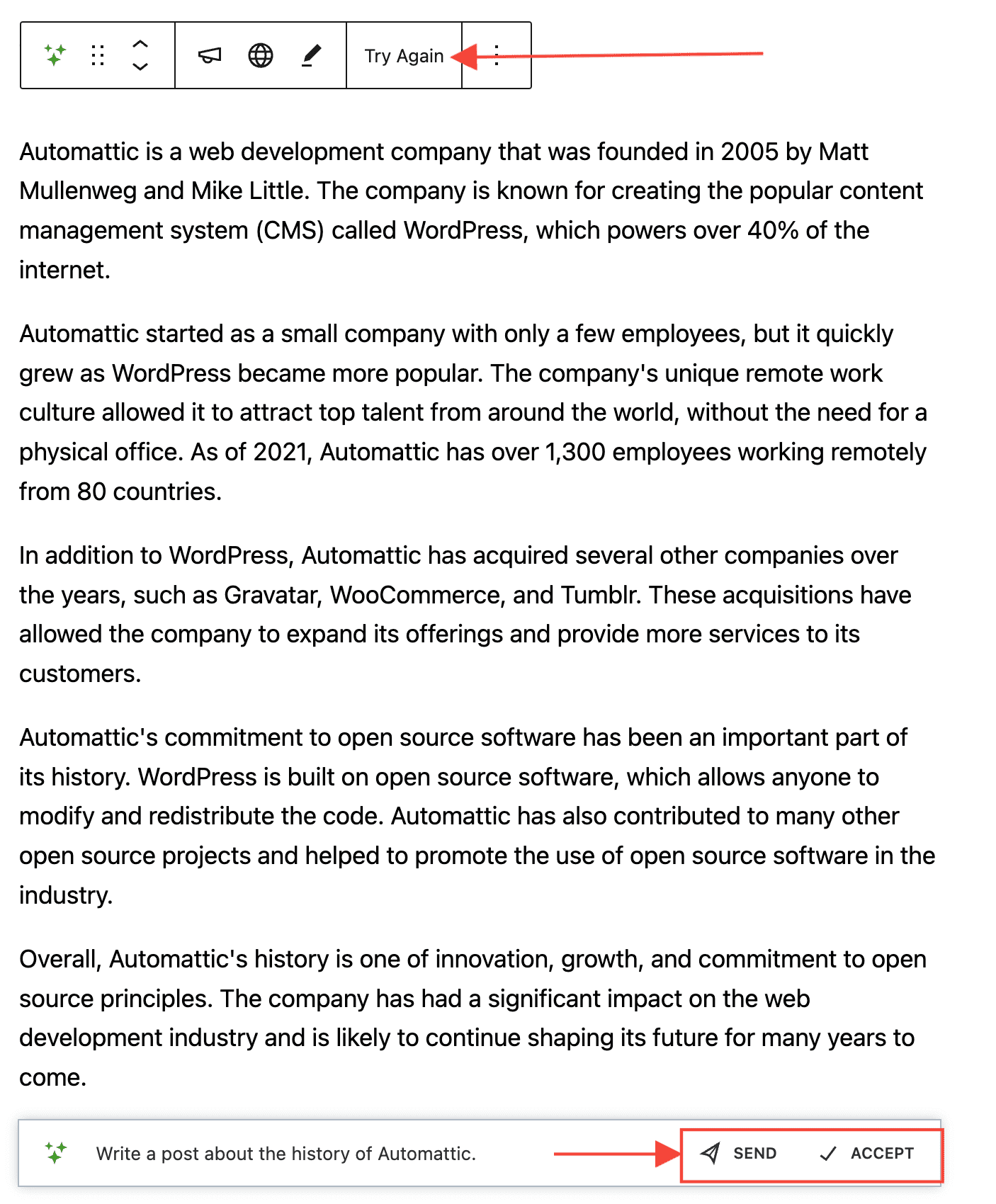
At this point, the AI Assistant will begin generating your content. If you see information in the output that is incorrect or not exactly as you wanted, you can click Stop in the prompt bar to choose from several options:

- Try Again: This option in the block toolbar menu removes the AI-generated content but retains your prompt, allowing you to refine the instructions in your initial prompt.
- Send: This option on the prompt input bar restarts the prompt from the beginning.
- Accept: This option on the prompt input bar completes the prompt at the point you stopped.
After the Jetpack AI Assistant completes the prompt and you accept it, the Jetpack AI Assistant prompt and input field are removed. You are left with the resulting blocks that you can edit as needed.
Customize and improve the AI-generated content
After the Jetpack AI Assistant completes the prompt and displays the content, there are several options to further customize the generated content:

- Change Tone: Apply one of 10 different tones to your content. Once you select a tone, Jetpack AI Assistant will rewrite the content in your chosen tone. You can repeat this process until you’re satisfied with the tone of your content.
- Translate: Translate your content into one of 12 languages: English, Spanish, French, German, Italian, Portuguese, Russian, Chinese, Japanese, Arabic, Hindi, and Korean. After selecting your preferred language, the AI Assistant rewrites the content in your chosen tone and language.
- Improve: Summarize or extend the AI-generated text to make it shorter or longer as desired.

Enhance existing content with Jetpack AI Extension
The Jetpack AI Extension feature enhances the functionality of core WordPress blocks such as Paragraphs, Headings, and Lists by adding a new AI Assistant button to the block toolbar. This enables you to leverage the power of AI to modify and improve the content of these blocks.
With the AI Extension feature, you can easily transform the text within Paragraph, Heading, and List blocks using AI-generated suggestions. This allows you to easily and efficiently enhance the quality, clarity, and effectiveness of your content.

To use the AI Extension feature, follow these steps:
- Select a Paragraph, Heading, or List block in your existing content.
- Click on the AI Assistant button that appears on the block toolbar – it looks like stars or sparkles.
- Choose from the available options. You can provide a prompt describing the changes you want, correct spelling and grammar, simplify, summarize, expand, translate, or change the tone of the text, the same as when you use the Assistant to generate fresh content from scratch.
- A small pop-up will open. If you chose Ask AI Assistant you will be able to type your prompt in the pop-up.
- You will see a loading indicator while Jetpack AI Assistant regenerates and modifies the content of the selected block based on the option you’ve chosen in Step 3.
- Once you are satisfied with the modifications, you may close the pop-up. If you are not satisfied and want to revert to the previous state, click the undo arrow button.
Give us feedback by rating Jetpack AI Assistant’s responses
When generating content, Jetpack AI Assistant provides a thumbs up/thumbs down rating system to help improve the service:

- Giving a thumbs up means the generated content met your expectations and aligned well with your prompt.
- Giving a thumbs down indicates the response did not match what you were looking for.
Rating is optional, but providing feedback helps us enhance the AI’s ability to interpret prompts, refine content generation, and improve the overall experience for all users.
Usage limitations
The Jetpack AI Assistant Block is one of the features of the Jetpack AI plan.
Jetpack AI offers you 20 free requests to get started. For more information about upgrading, please refer to our detailed Usage limitations and upgrades guide.
Still need help?
Please contact support. We’re happy to advise.
 Jetpack