
Many testers think using CSS selectors in Selenium is simple—just pick an element and use its selector—but I found it’s not that easy.
Small changes in the webpage’s structure often broke my tests. A test might pass locally but fail on another browser or stop working the next day.
I kept tweaking selectors, adding waits, rewriting steps—yet the flakiness never fully went away. I realized the issue wasn’t Selenium—it was that I wasn’t picking the right selectors for the right elements.
Learning how CSS selectors actually work—and when to use each type—is what finally made my tests stable, readable, and far easier to maintain.
Overview
CSS selectors in Selenium are patterns used to locate elements on a webpage using their ID, class, attributes, or structural relationships. They offer a fast, flexible way to target elements when writing automated tests.
How CSS Selectors Work in Selenium
- Selenium uses CSS selector expressions to match elements in the DOM.
- They allow precise targeting based on attributes, hierarchy, or partial matches.
- Faster and cleaner than many other locator strategies (like XPath).
- Useful for dynamic elements where IDs or classes change frequently.
Example: Using a CSS Selector in Selenium (Java)
WebElement loginButton = driver.findElement(By.cssSelector("button.login-btn"));

loginButton.click();
Common CSS Selector Patterns
- Element Selector: tagname
- ID Selector: #id
- Class Selector: .classname
- Attribute Selector: [attribute=’value’]
- Multiple Attributes: tag[att1=’v1′][att2=’v2′]
- Contains (substring): [attribute*=’partial’]
- Starts With: [attribute^=’start’]
- Ends With: [attribute$=’end’]
- Child Selector: parent > child
- Descendant Selector: parent child
This article explores how to use CSS selectors in Selenium, with clear explanations and examples to help you identify web elements accurately and write more reliable test scripts.
What is a CSS Selector?
A CSS selector is a pattern used to target and style HTML elements in a webpage, but in Selenium, it serves a different purpose. Selenium uses CSS selectors as one of its primary locator strategies to identify web elements during test execution.
Instead of relying on IDs or full XPath expressions, CSS selectors allow you to pinpoint elements based on their tag names, IDs, classes, attributes, or even their position within the DOM structure.
Because they are lightweight, easy to read, and supported across all major browsers, CSS selectors often provide a faster and more reliable way to locate elements—especially when dealing with dynamic UIs, nested components, or frameworks like React and Angular.
Their flexibility makes them an essential tool for writing stable, maintainable, and efficient Selenium tests.
Types of CSS Selectors in Selenium (with Examples)
Selenium supports several types of CSS selectors, each designed to locate elements in different ways. Here are the most commonly used CSS selector types with examples.
- ID
- Class
- Attribute
- Sub-String
- Inner String
We would be using BStackDemo application to understand some important CSS Selector strategies:
1. ID
In CSS, we can use “#” notation to select the “id” attribute of an element.
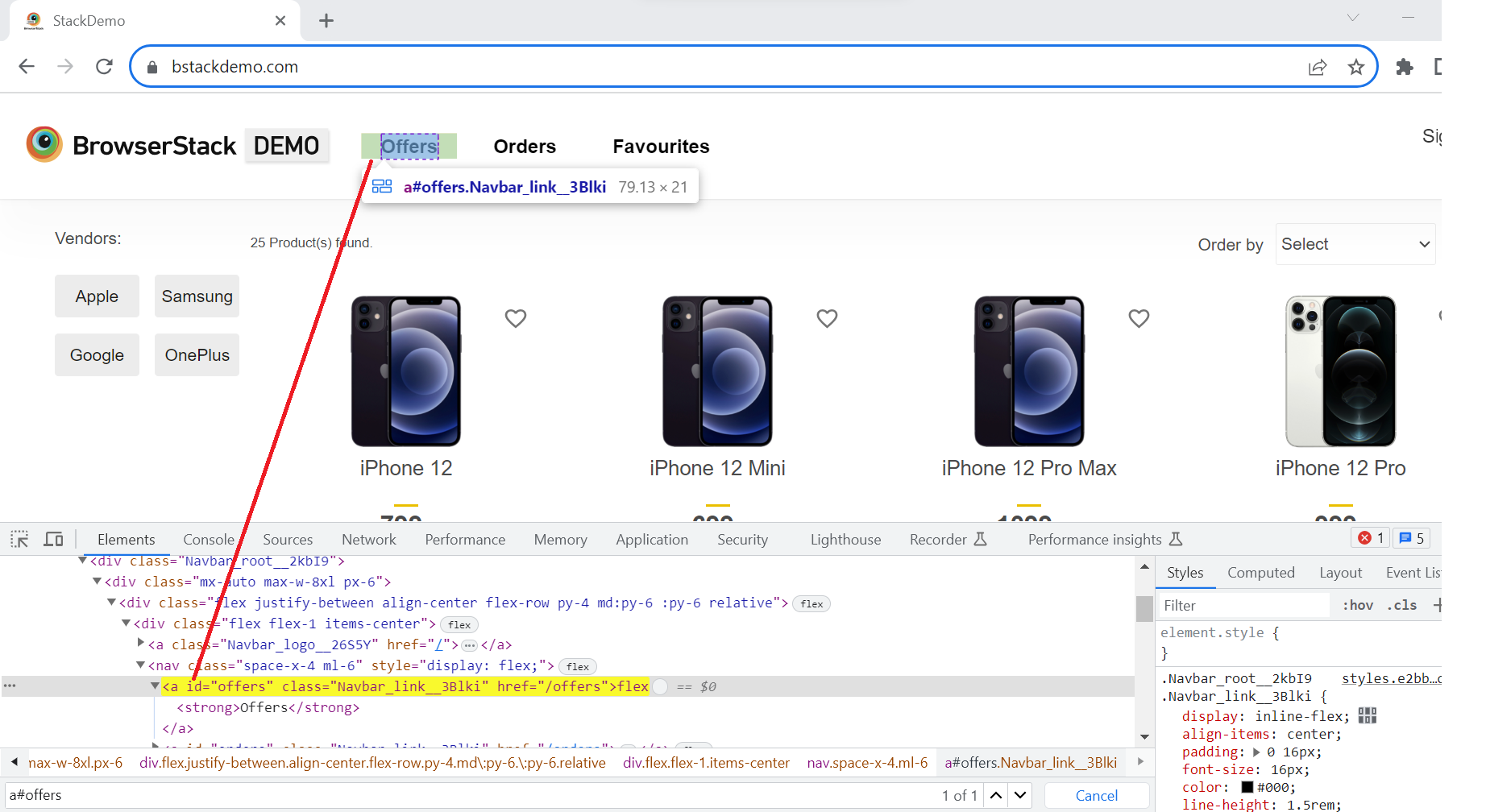
For WebElement “Offers”, tag name is “a” and id value is “offers”. Different syntaxes for CSS with Id are as follows:
Syntax:
driver.findElement(By.cssSelector(“<tagname>#<id value>”));
driver.findElement(By.cssSelector(“#<id value>”));
driver.findElement(By.cssSelector(“<tagname>[id=’<id value>’]”));
To locate the “Offers” tab on the BStackDemo application, the following are the CSS selectors with id.
driver.findElement(By.cssSelector("a#offers"));driver.findElement(By.cssSelector("#offers"));driver.findElement(By.cssSelector("a[id='offers']"));2. Class
In CSS, we can use “.” notation to select the “class” attribute of an element.
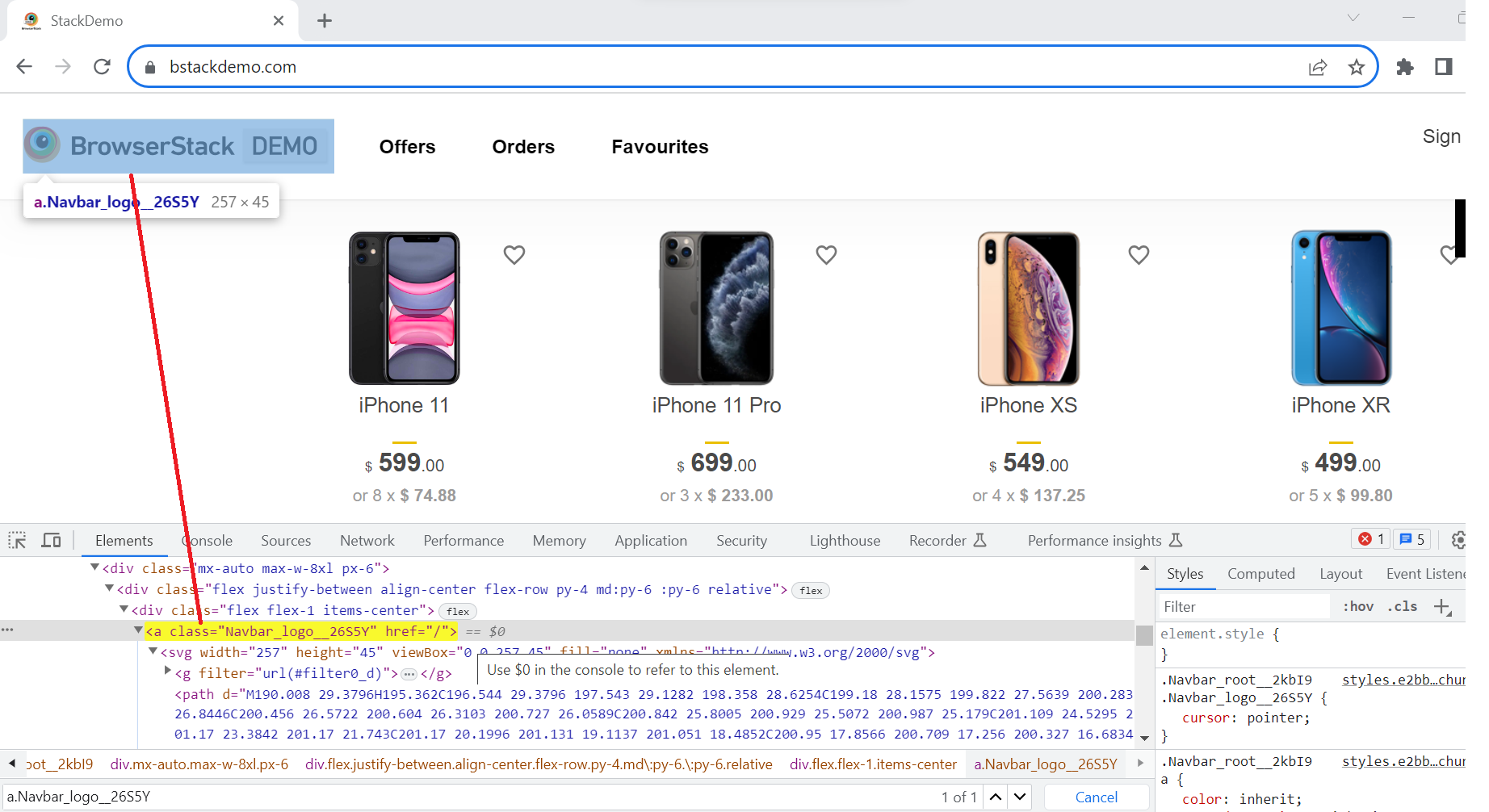
For WebElement “BrowserStackDemo” home logo, tag name is “a” and class value is “Navbar_logo__26S5Y”. Different syntaxes for CSS with class are as follows:
Syntax:
driver.findElement(By.cssSelector(“<tagname>.<class value>”));
driver.findElement(By.cssSelector(“.<class value>”));
driver.findElement(By.cssSelector(“<tagname>[class=’<class value>’]”));
To locate “BrowserStackDemo” on the BStackDemo application, following are the CSS selectors with class.
driver.findElement(By.cssSelector("a.Navbar_logo__26S5Y"));driver.findElement(By.cssSelector(".Navbar_logo__26S5Y"));driver.findElement(By.cssSelector("a[class='Navbar_logo__26S5Y']"));Also Read: How to handle Action class in Selenium
3. Attribute
Apart from “id” and “class”, other attributes can also be used to locate web elements using CSS selector.
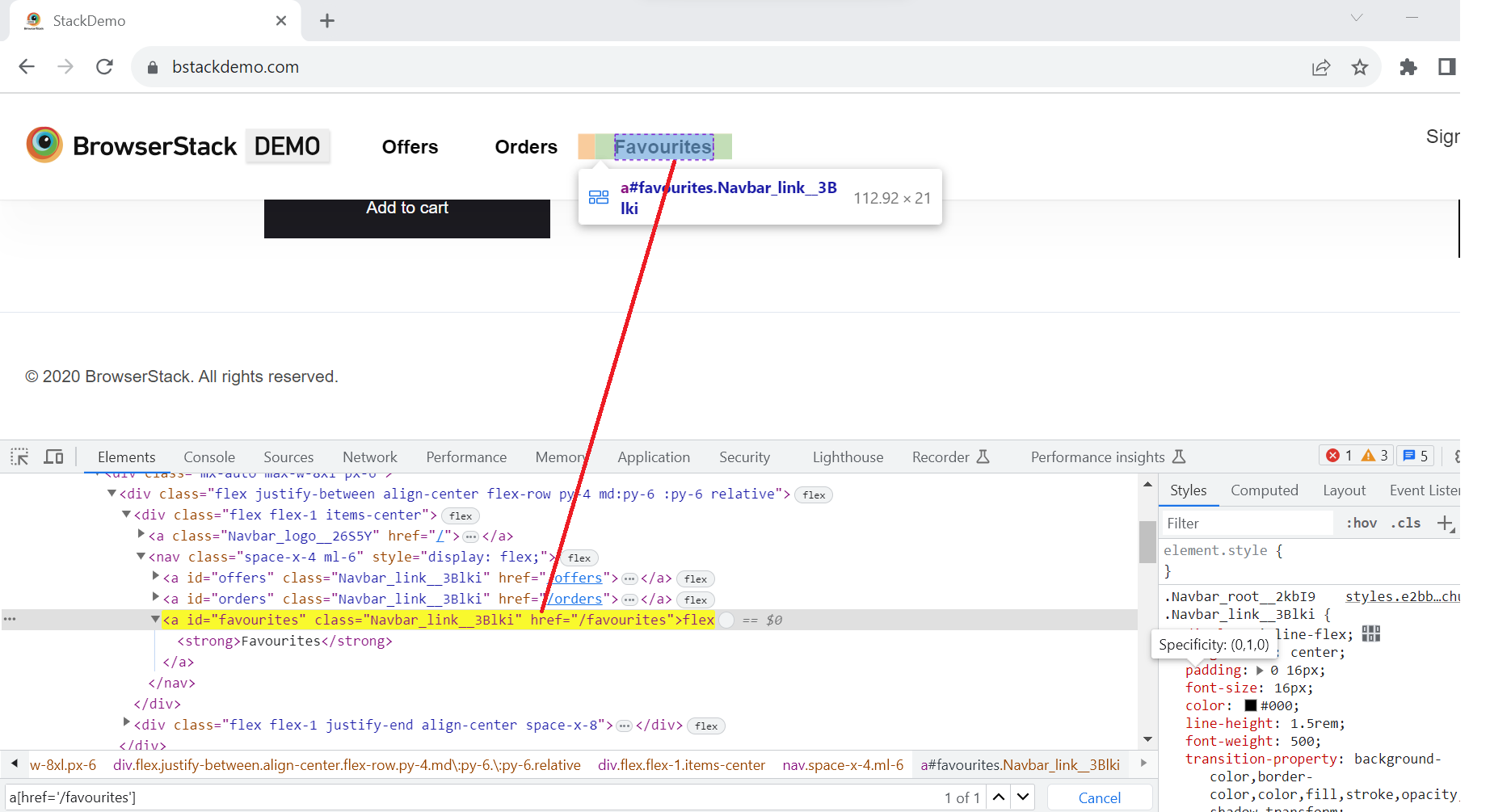
For the WebElement “Favourites” tab, tag name is “a” and href value is “/favourites”.
Syntax:
driver.findElement(By.cssSelector(“<tagname>[href=’<href value>’]”));
To locate the “Favourites” tab on BStackDemo application, following is the CSS selector with href attribute.
driver.findElement(By.cssSelector("a[href='/favourites']"));There are other attributes too such as name, placeholder, title, type, etc which can be used to locate elements using CSS selector.
4. Combining Attributes
From above examples we understood how we can uniquely identify elements using CSS selectors, however sometimes, using only class/ id/ single attribute does not yield a unique locator for a given web element. In such cases, we can combine multiple attributes to fetch a unique locator.
- Id and attribute example:
If we want to locate WebElement “Offers” tab by just one attribute “href”, it gives 2 results which means it is not unique and pointing to 2 web elements on DOM. To make it unique we should also use “id” attribute.
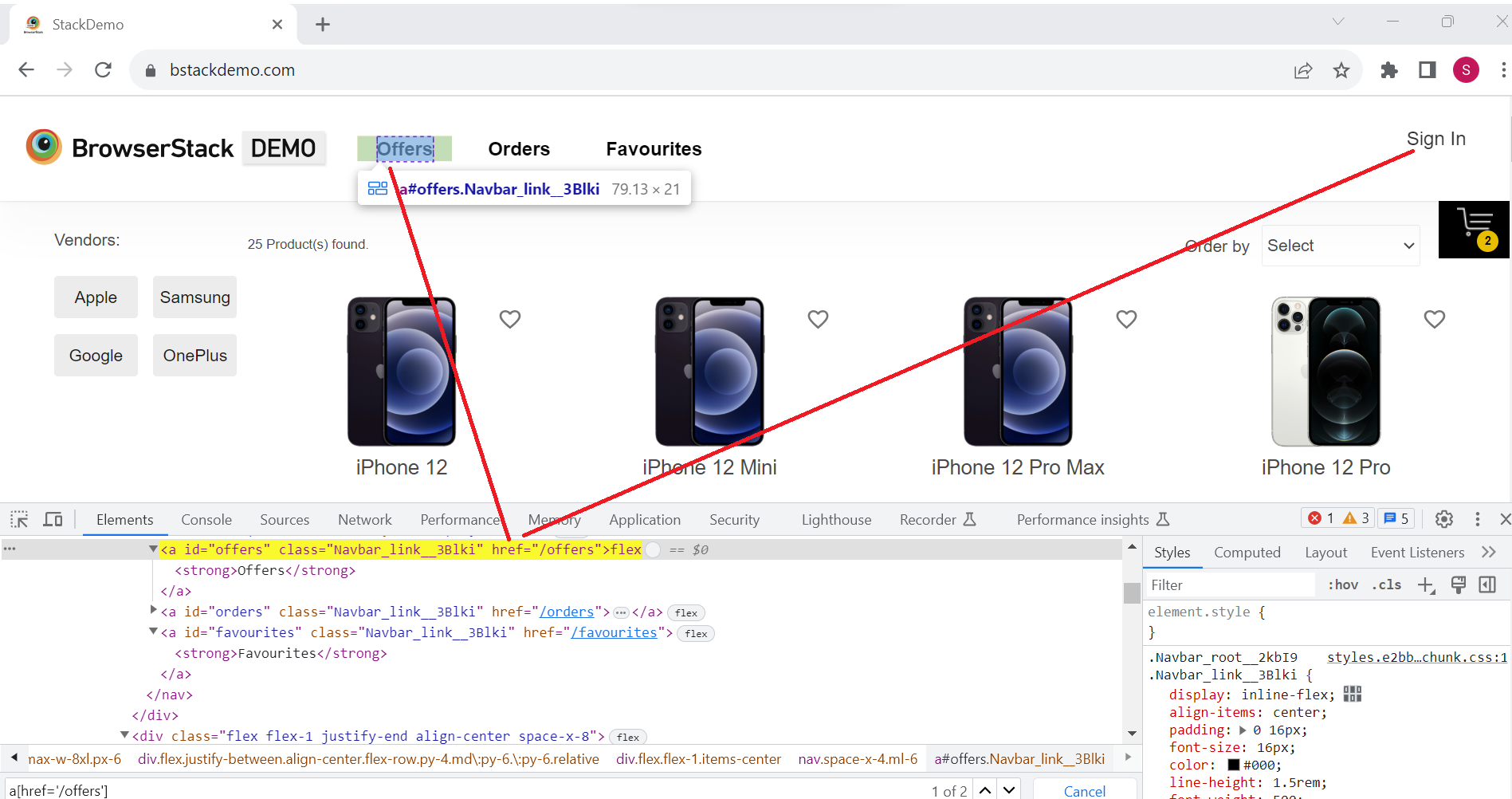
Syntax:
driver.findElement(By.cssSelector(“<tagname>#<id value>[href=’<href value>’]”));
driver.findElement(By.cssSelector("a#offers[href='/offers']"));- Class and attribute Example:
If we want to locate the WebElement “Offers” tab by just class value, it gives 3 results, which means it is not unique and pointing to 3 web elements on DOM. To make it unique we should also use the “href” attribute.
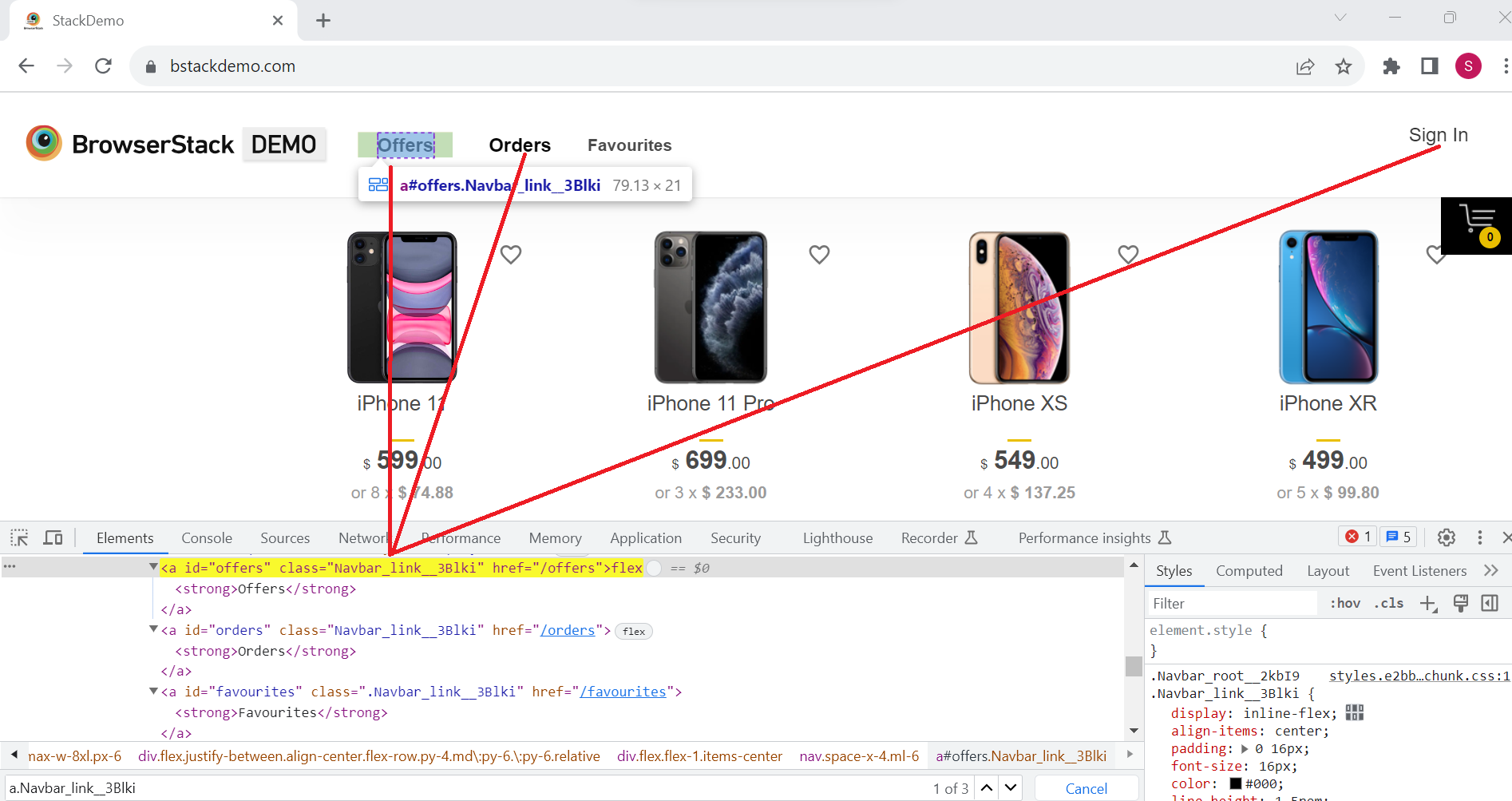
Syntax:
driver.findElement(By.cssSelector(“<tagname>.<class value>[href=’<href value>’]”));
driver.findElement(By.cssSelector("a.Navbar_link__3Blki[href='/orders']"));5. SubString
CSS Selectors in Selenium allows to match a partial String with the help of various symbols to represent the start, end and contents inside a text. Let us understand all the three ways with example for accessing BrowserStack logo on BStackDemo web application.
- Matching a prefix (Starts with: ^): Locate the web element using the substring that starts with a certain value.
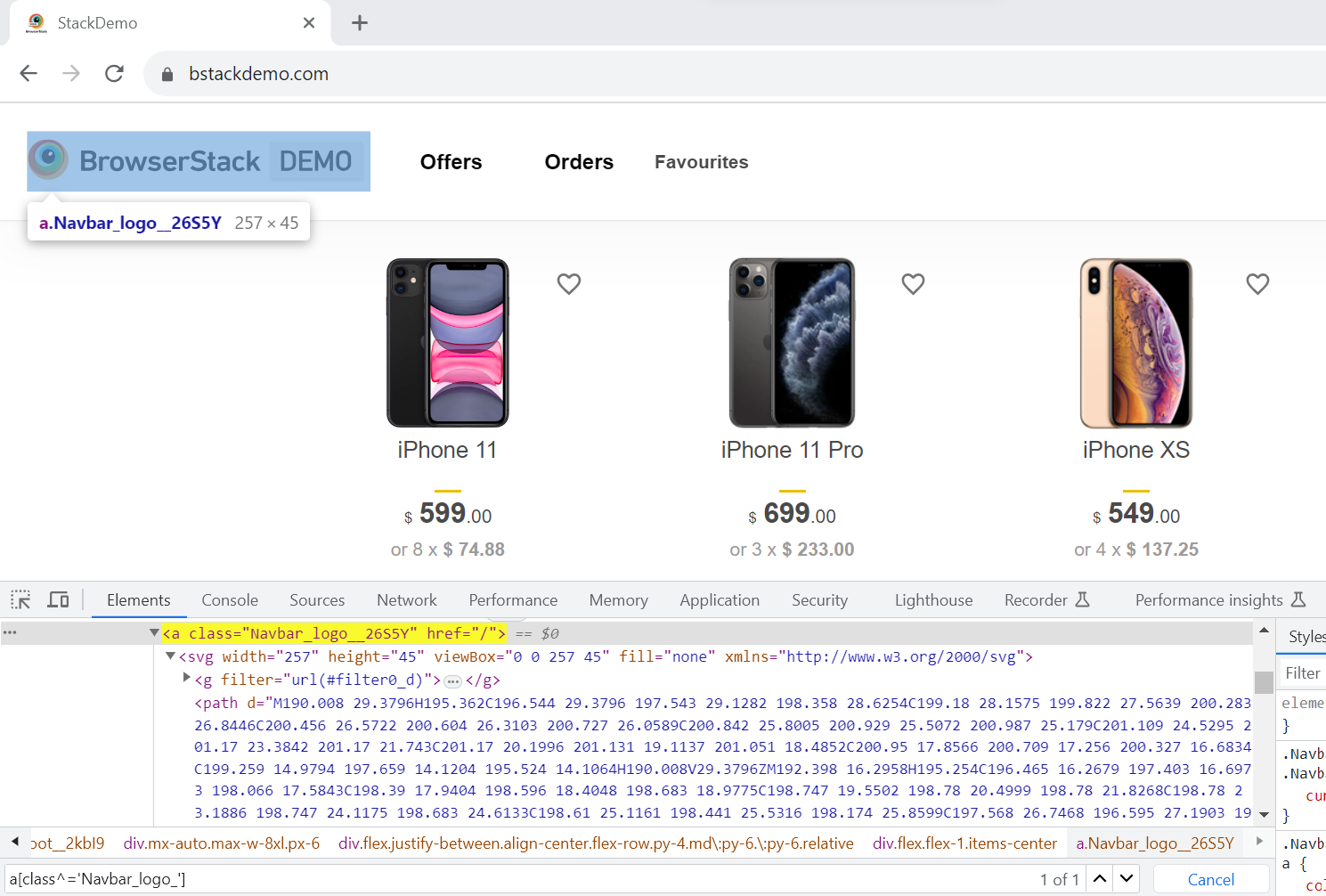
Syntax
driver.findElement(By.cssSelector(“<tagname>[<attribute>^=’prefix of the string’]”));
Example:
a[class^='Navbar_logo_']
The complete String here is “Navbar_logo__26S5Y” therefore only the start of the String i.e: “Navbar_logo_” is considered to locate the element.
- Matching a suffix (Ends with: $): Locate the web element using the substring that ends with a certain value.
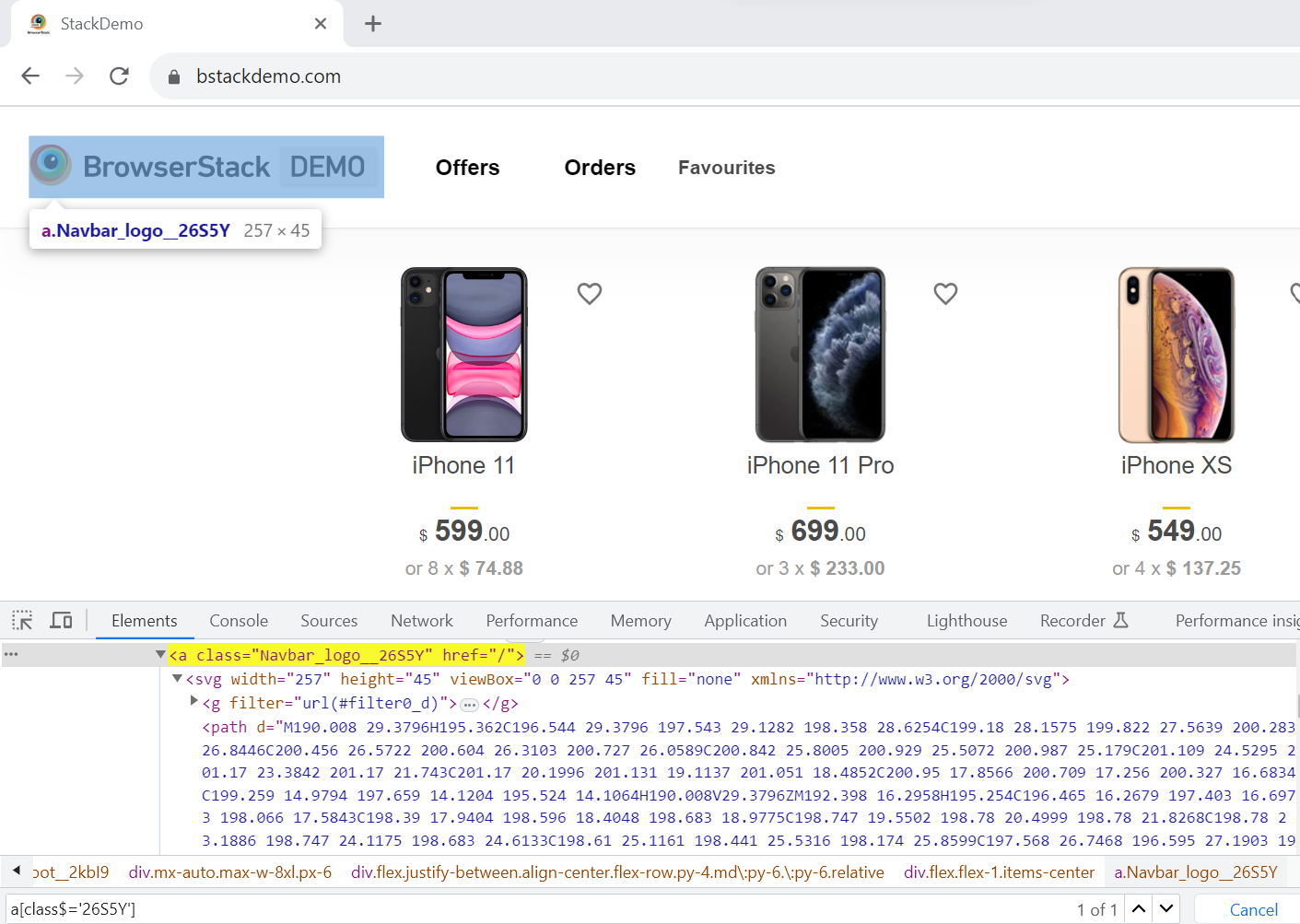
Syntax:
driver.findElement(By.cssSelector(“<tagname>[<attribute>$=’suffix of the string’]”));
Example:
a[class$='26S5Y']
The complete String here is “Navbar_logo__26S5Y” therefore only the end of the String i.e: “26S5Y ” is considered to locate the element.
- Matching a substring (contains: *): Locate the web element by matching the substring.
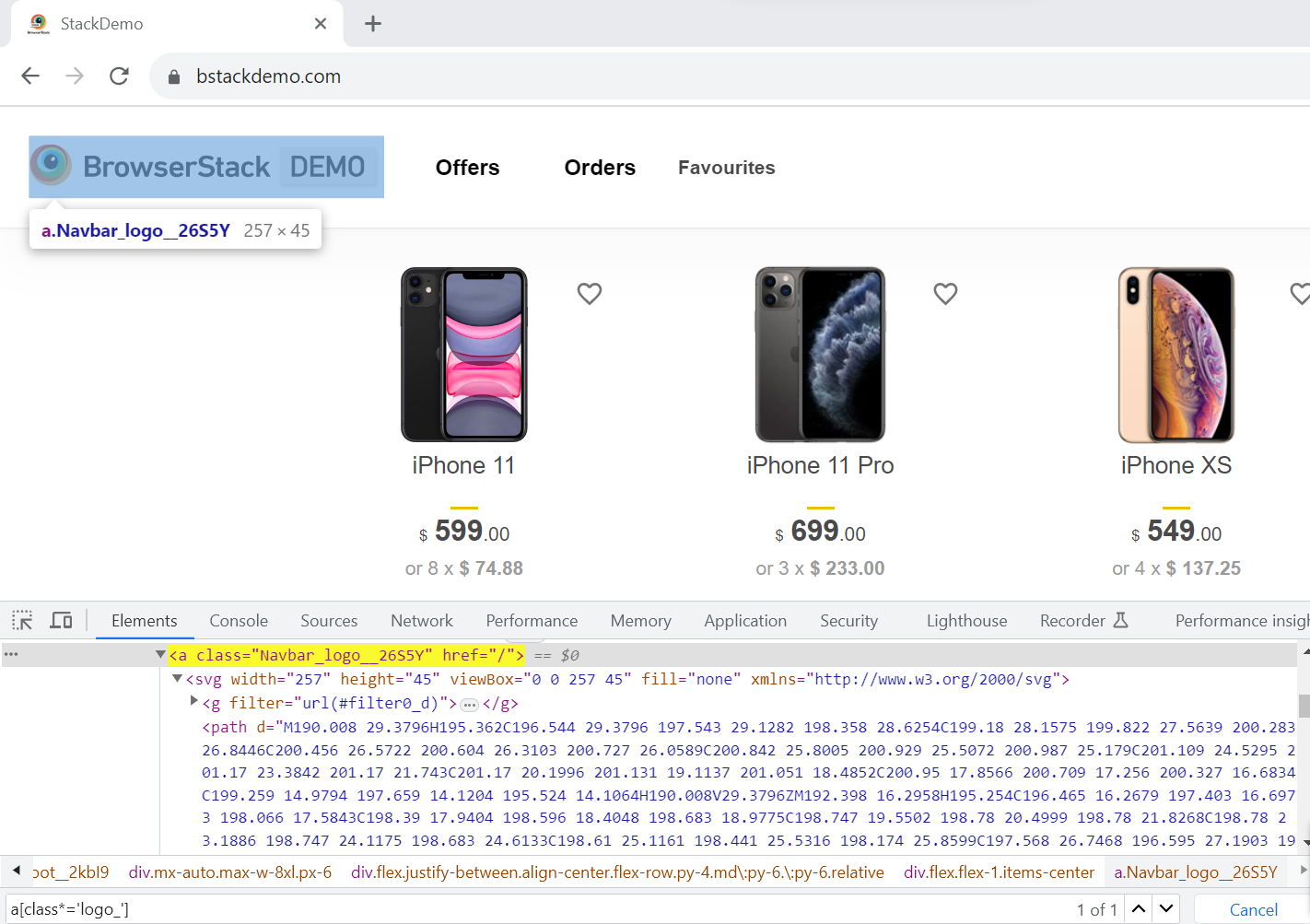
Syntax:
driver.findElement(By.cssSelector(“<tagname>[<attribute>*=’substring’]”));
Example:
a[class*='logo_']
The complete String here is “Navbar_logo__26S5Y” therefore only a substring of the String i.e: “logo_ ” is considered to locate the element.
Mastering these CSS selector types helps you target elements more reliably, but real applications often behave differently across browsers and devices.
To ensure your selectors work consistently in real-user conditions, you need to test them across the real browsers, devices, and OS versions – and this is where BrowserStack Automate can make a significant difference.
Debug Selector Failures Faster with BrowserStack Automate
Even well-written CSS selectors can behave differently across browsers, devices, or dynamic DOM structures. Elements may load at different times, appear differently on mobile vs desktop, or change when frameworks like React or Angular re-render components.
These variations often lead to flakiness—tests that pass locally but fail in production-like environments.
BrowserStack Automate helps you catch and debug these selector issues early by running Selenium tests on real browsers and devices in the cloud.
It offers you instant access to real user environments, ensuring your selectors hold up under actual conditions.
With Automate, you can:
- Run Selenium tests across real browser and OS combinations.
- Identify flaky selectors using video recordings, screenshots, console logs, and network logs.
- Debug dynamic element issues faster with detailed session insights.
- Run tests in parallel to speed up feedback and quickly validate selector fixes.
- Integrate with CI/CD pipelines so selector issues surface early in development.
By testing selectors on real browsers and devices, you gain confidence that your locators work consistently—no matter where your users are running your application.
Conclusion
CSS selectors are one of the most powerful and reliable ways to locate elements in Selenium tests. Understanding how each selector type works—whether it’s an ID, class, attribute, or substring match—helps you write tests that are cleaner, faster, and far more stable.
But selectors can still behave differently across browsers, devices, and dynamic UI states, which is why validating them in real-world conditions is essential.
By combining well-structured CSS selectors with testing on real browsers and devices, you ensure your automation suite stays robust as your application evolves.
With platforms like BrowserStack Automate, you can quickly verify selector behavior across real environments, catch flakiness early, and deliver more consistent, reliable test results.