Ever tried running Selenium tests on Chrome and assumed ChromeDriver would “just work”?
I did. And it didn’t work.
Instead of a smooth test run, I ended up with failing scripts, mismatched driver versions, and hours lost trying fixes that should have been simple.
ChromeDriver felt like the perfect solution—until I realized it needed precise setup, the right versioning, and a clear understanding of Chrome-specific configurations.
And with Chrome holding over 60% of the global browser market share, getting this right isn’t optional—it’s essential for delivering seamless web experiences.
Overview
Selenium ChromeDriver is the dedicated driver that lets Selenium communicate with the Chrome browser, enabling automated actions like clicking, typing, navigating, and validating UI behavior. It acts as the bridge between your Selenium scripts and real Chrome sessions.
Key aspects of Selenium ChromeDriver:
- Browser Automation Bridge: ChromeDriver acts as the communication layer between Selenium scripts and the Chrome browser, translating WebDriver commands into real browser actions.
- Version Compatibility: Each ChromeDriver version corresponds to a specific Chrome browser version, making proper version alignment essential to avoid unexpected test failures.
- Chrome-Specific Features: It unlocks access to Chrome-only capabilities such as headless mode, custom user profiles, extensions, and advanced automation settings.
- DevTools Integration: ChromeDriver supports interaction with the Chrome DevTools Protocol (CDP), enabling tasks like network manipulation, performance monitoring, and console log capture.
- Cross-Platform Support: It works across all major operating systems, Windows, macOS, and Linux, allowing consistent Selenium test execution in diverse environments.
- Essential for Real-World Testing: ChromeDriver ensures your Selenium scripts run on real Chrome conditions, making UI validations accurate, stable, and aligned with actual user experiences.
This article explores how to get ChromeDriver working properly, step by step, so your Selenium tests run reliably on Chrome every single time.

What is a Selenium ChromeDriver?
Selenium ChromeDriver is a standalone executable that serves as the communication interface between Selenium test scripts and the Google Chrome browser.
It receives WebDriver commands from Selenium and translates them into native actions within Chrome, enabling automated interactions such as navigation, element manipulation, and data retrieval.
ChromeDriver adheres to the W3C WebDriver protocol, ensuring standardized and reliable browser automation across different environments.
By replicating real user behavior within Chrome, it allows testers to validate functionality, performance, and user flows with high accuracy.
Since Google Chrome is updated frequently, ChromeDriver must be aligned with the corresponding browser version to maintain compatibility and prevent execution failures.
How to download ChromeDriver for Selenium?
You can download ChromeDriver for Selenium as per the ChromeDriver version using its official website. Here are the steps given below:
Steps to download ChromeDriver version 115 and above
Step 1. Navigate to ChromeDriver official site for downloading the latest ChromeDriver.
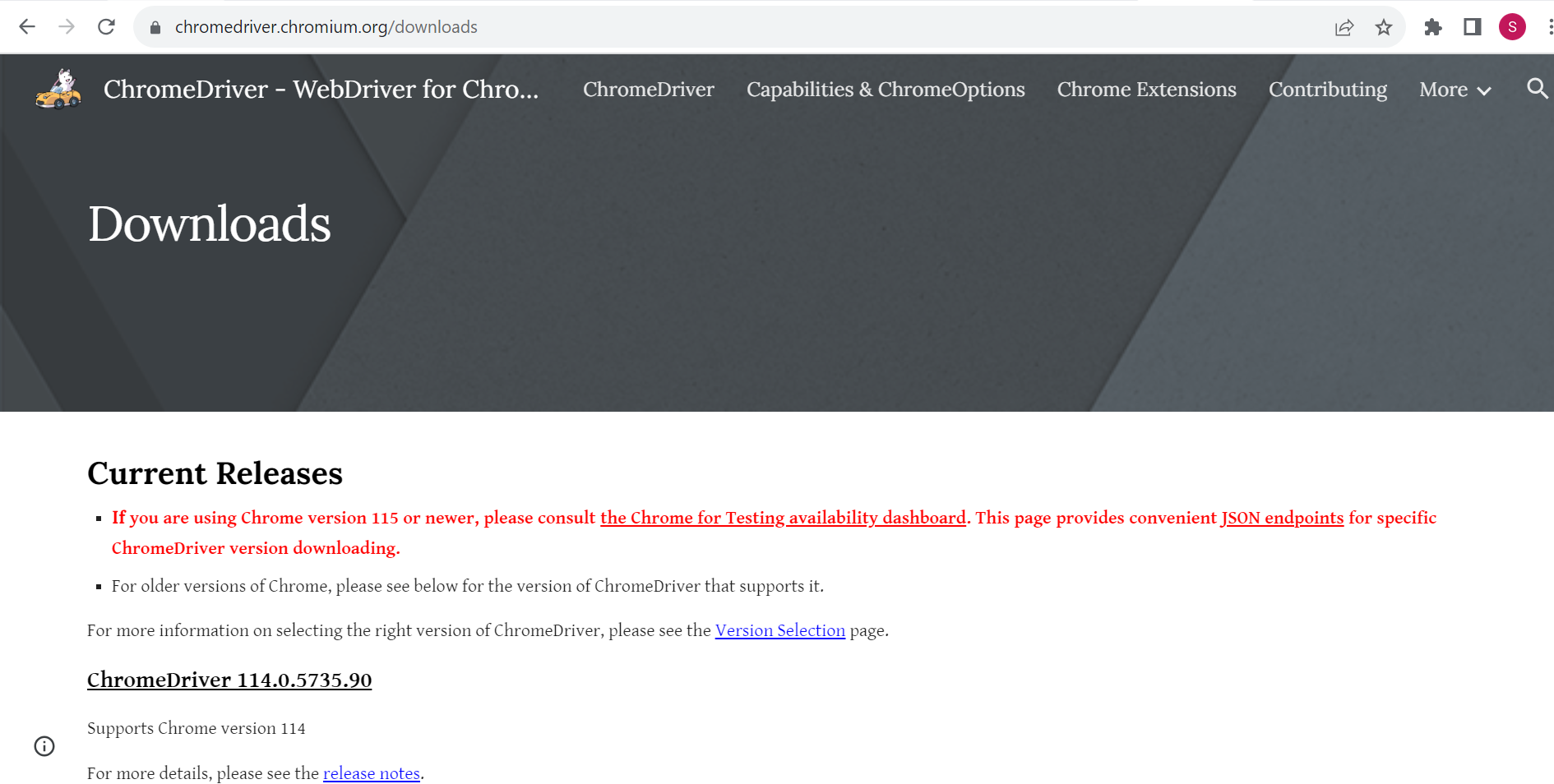
Step 2. For Chrome browser version 115 and above, click on “the Chrome for Testing availability dashboard” which will navigate to Chrome for Testing Dashboard.
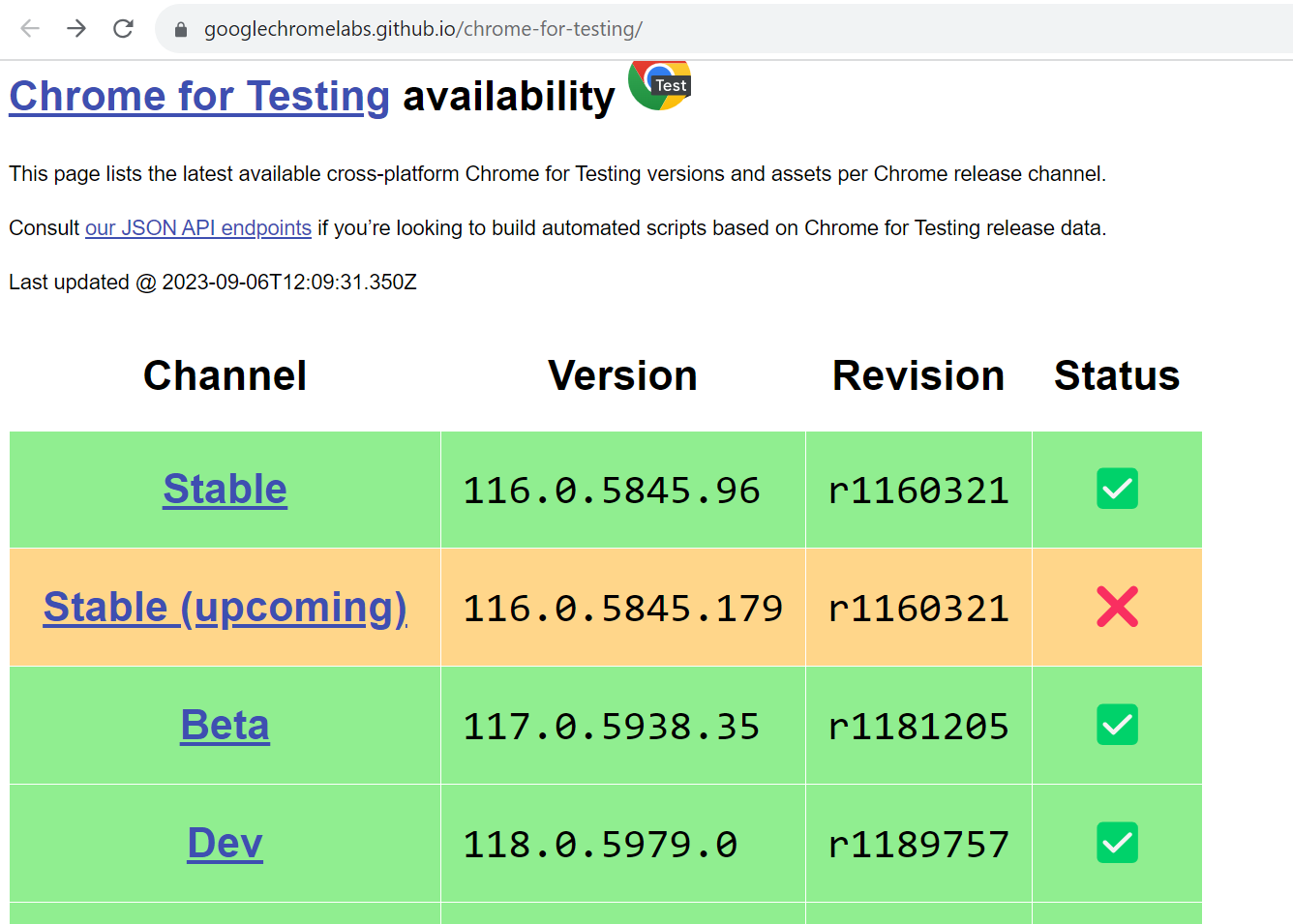
Step 3. This page has various versions for Stable, Beta, Dev and Canary releases for Windows, Mac and Linux operating system. Click on Stable link and look for ChromeDriver Win32 or Win64 (based on the Windows OS system type).
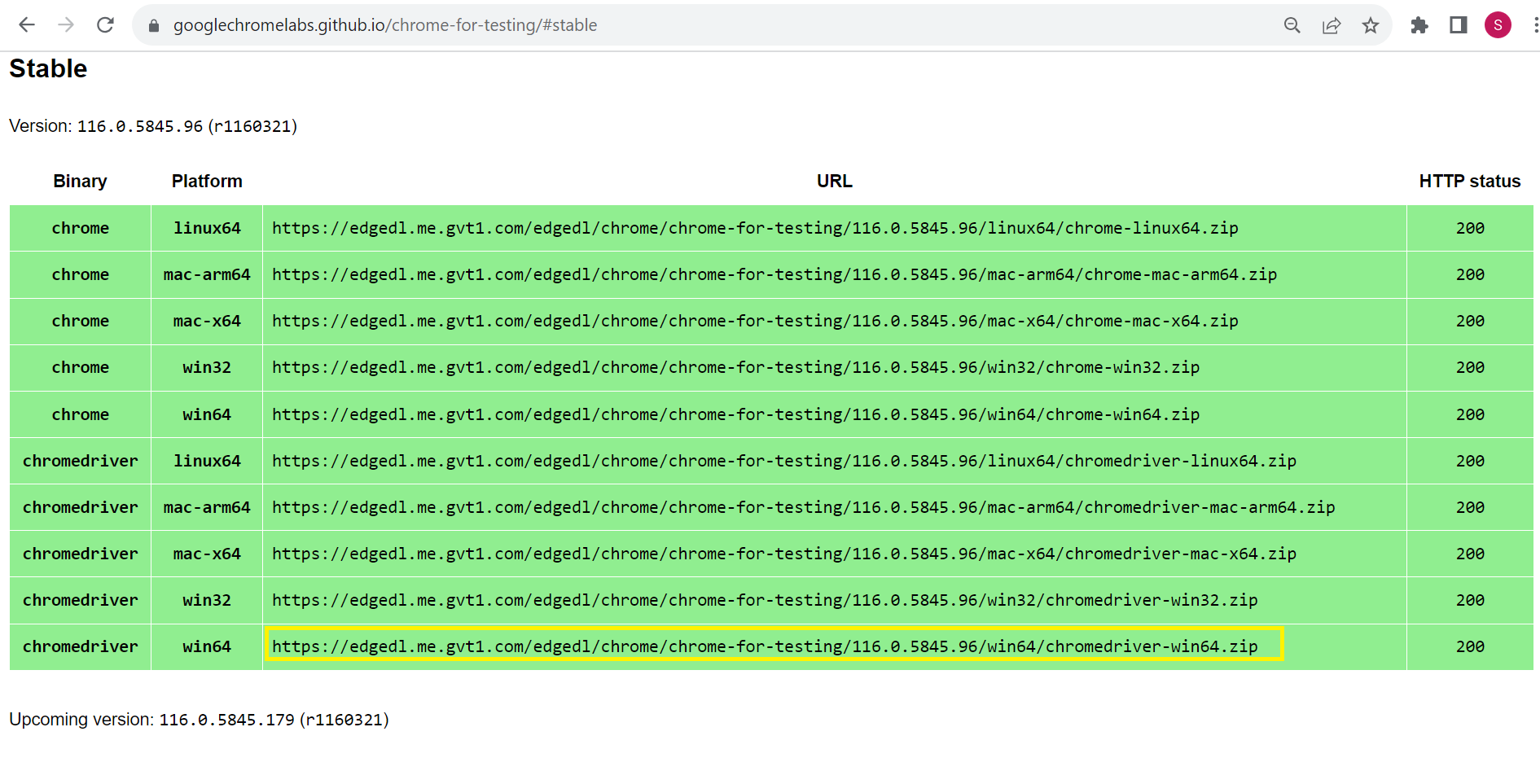
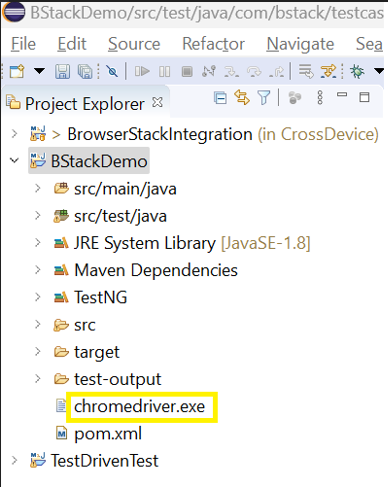
Step 4. Open the URL in the new browser window and ChromeDriver will be downloaded in zip format. Extract the content and move it to the desired location. (Preferably at the root location of the automationproject).
Steps to download ChromeDriver version 114 and below
Step 1. Navigate to ChromeDriver official site which lists all the latest and previous versions of ChromeDriver.
Step 2. Based on the Chrome browser version available on the system download the respective ChromeDriver. Assuming current Chrome browser version to be 114, click on “ChromeDriver 114.0.5735.90”. This page will navigate to the download section which has drivers for Mac, Linux, and Windows.
Step 3. Assuming the current system is Windows, click on “chromedriver_win32.zip”.
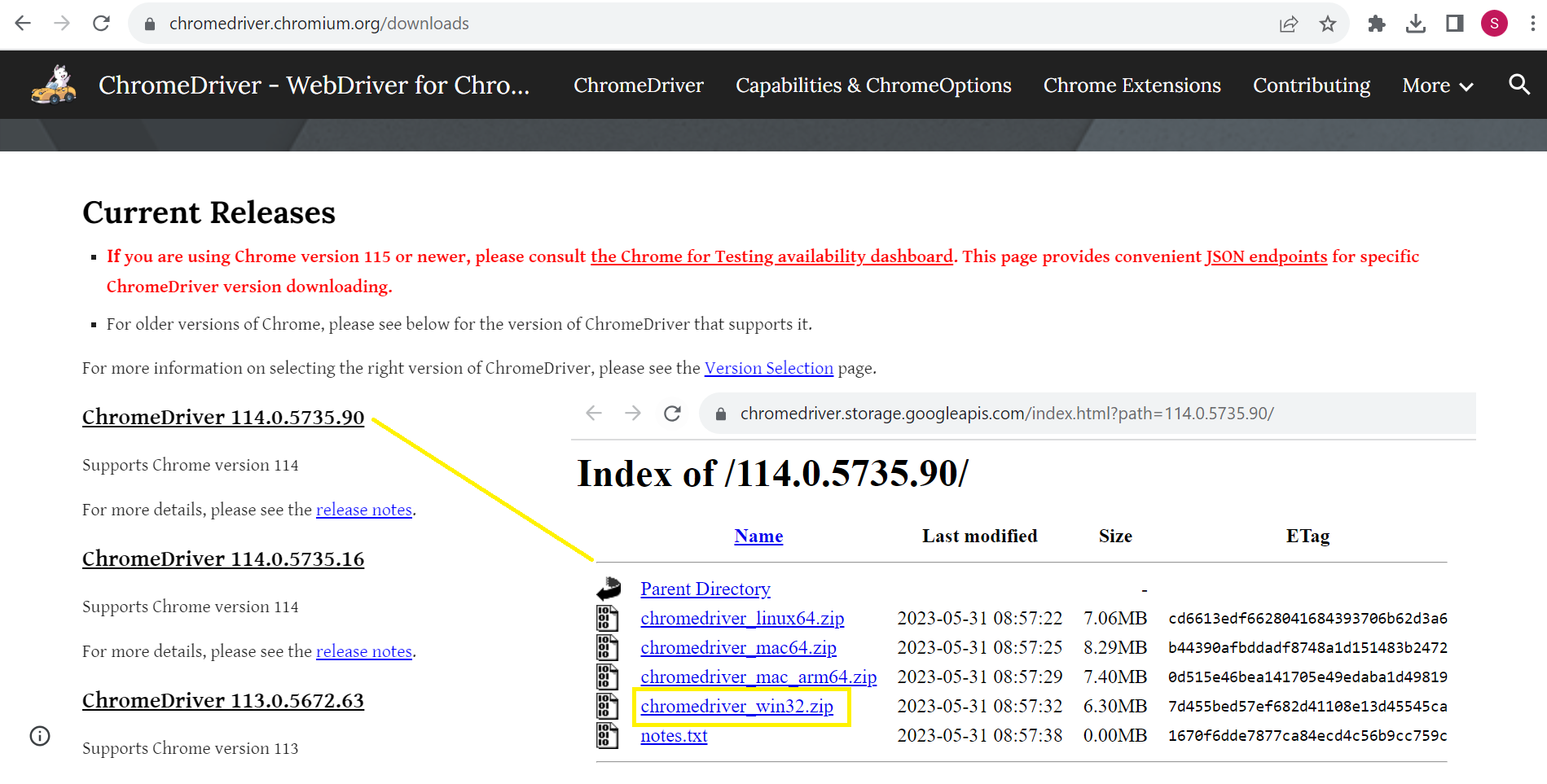
Step 4. ChromeDriver will be downloaded in zip format. Extract the content and move it to the desired location. (Preferably at the root location of the automation project).
Once the appropriate ChromeDriver is downloaded based on the Chrome browser version, there are two methods available to configure ChromeDriver: through the environment variable or by using the System.setProperty() method in Java.
Downloading ChromeDriver is just the first step in building robust Selenium automation tests on Chrome. Proper configuration, environment setup, and leveraging Chrome-specific capabilities can significantly boost your test reliability and efficiency.
Our experts can help you with your testing challenges and strategies to maximize your automation success.
Get Expert QA Guidance Today
Schedule a call with BrowserStack QA specialists to discuss your testing challenges, automation strategies, and tool integrations. Gain actionable insights tailored to your projects and ensure faster, more reliable software delivery.
How to configure ChromeDriver?
You can configure ChromeDriver using different methods
Configure ChromeDriver via Environment Variable
On Windows, you can define system-level variables using the Environment Variables settings. By adding ChromeDriver to your system’s PATH, Selenium can automatically detect and use it without requiring an explicit file path in your code.
Once configured, every time a WebDriver instance is created, Selenium will locate ChromeDriver directly from the system environment—simplifying setup and keeping your scripts cleaner.
Below steps will help you set up the environment variable for Chrome Driver.
Step 1. After the ChromeDriver executable file is extracted and moved to the desired location, copy that location to set its path in System’s environment variables.
Step 2. Open Environment variable pop up by directly searching for “Environment Variables” from Windows Search. This will open “System Properties” pop up. Click on the “Environment Variables” button.
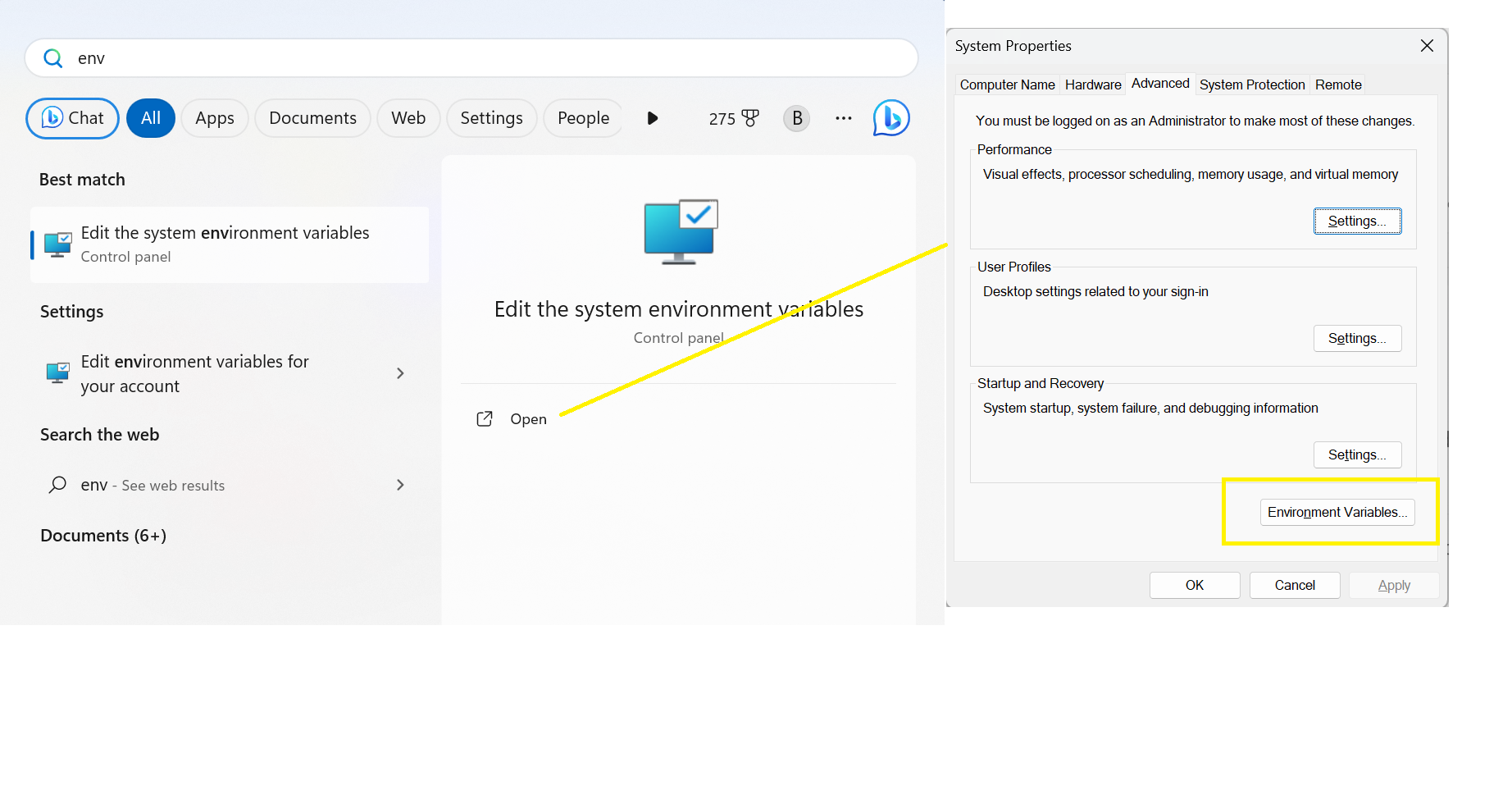
Step 3. On Environment Variables pop-up’s System Variables section, click on Path variable and click on the Edit button.
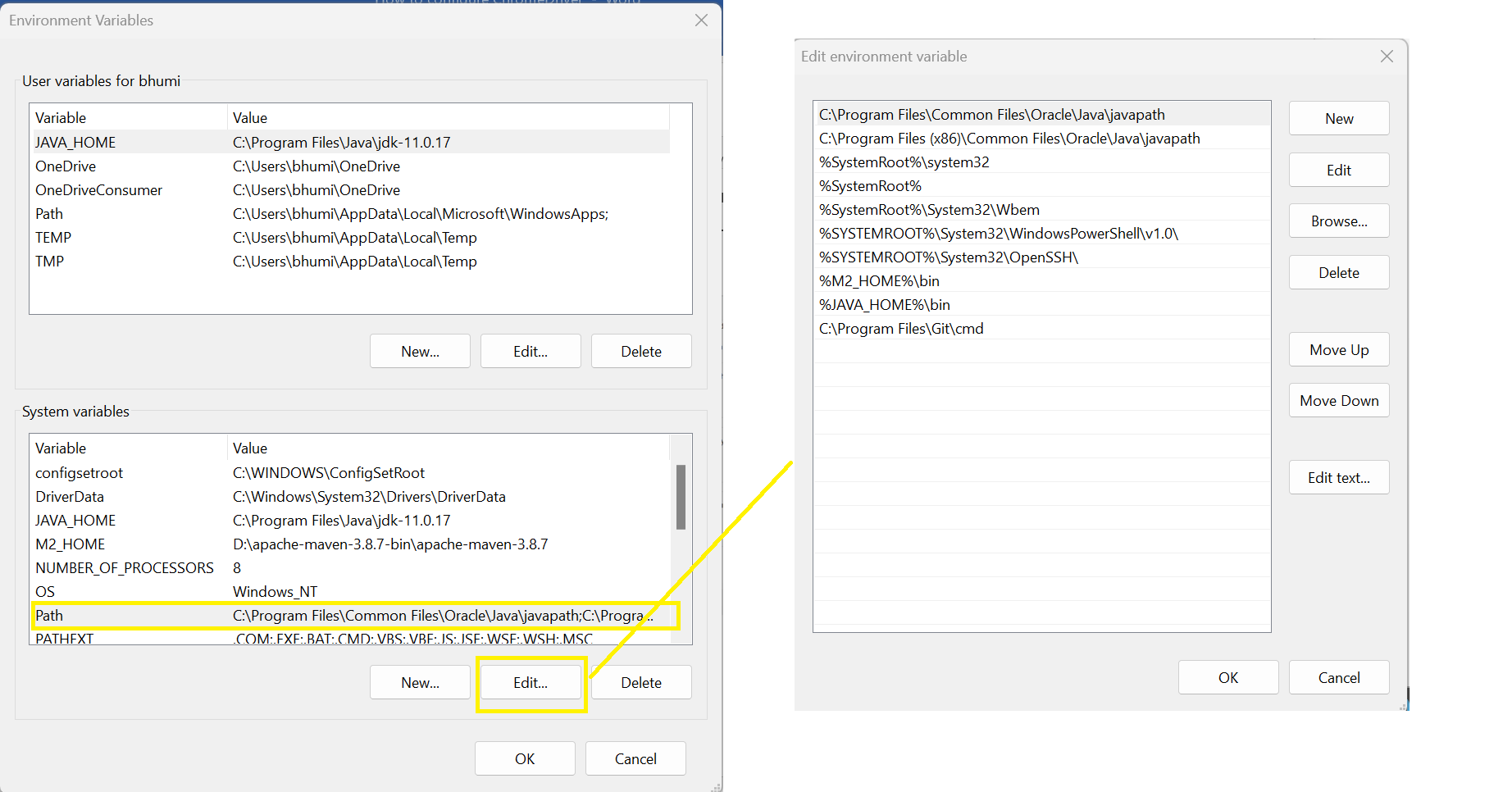
Step 4. On the Edit environment variable pop-up, click on the “New” button and add the ChromeDriver executable location. Click on OK to save the configuration.
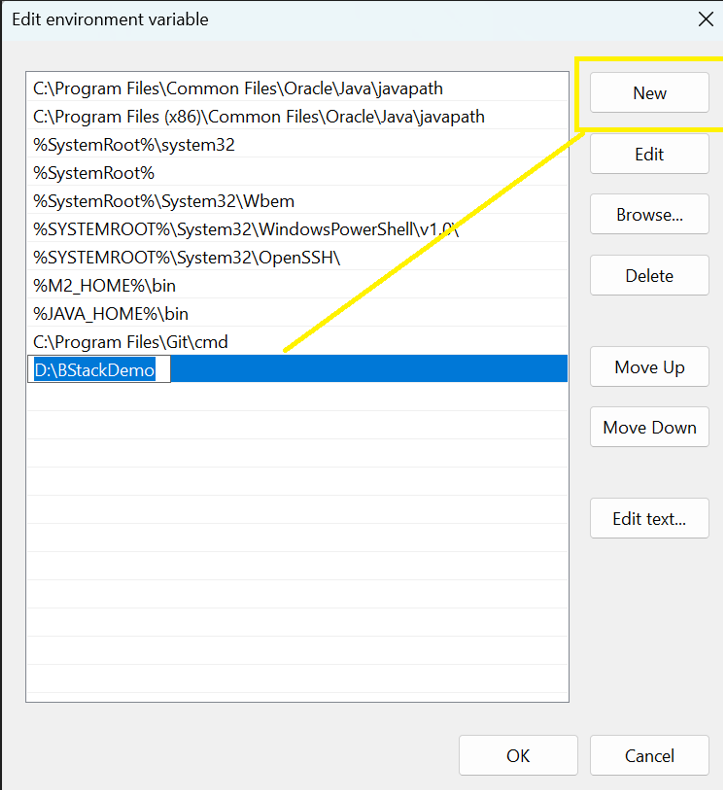
Step 5. Now whenever you will create an instance of ChromeDriver in the Selenium script, it will automatically detect the ChromeDriver path from the system variable.
driver = new ChromeDriver();
Configure ChromeDriver via System.setProperty method
ChromeDriver can also be configured by explicitly specifying the ChromeDriver path in the test script.
System.setProperty accepts key value pair where key would be “webdriver.chrome.driver” and value would be the path of the ChromeDriver exe path.
System.setProperty("webdriver.chrome.driver", "D:\\BStackDemo\\chromedriver.exe");Steps for macOS users
If you’re working on macOS, here are the steps to ensure ChromeDriver runs smoothly on your system.
- Go to the terminal and type the command: sudo nano /etc/paths
- Enter the password
- At the bottom of the file, add the path of your ChromeDriver
- Type Y to save
- To exit press Control + C
Read More: Exception Handling in Selenium WebDriver
Chrome-Specific Functionalities in Selenium
Selenium offers a range of Chrome-specific features that extend beyond basic browser automation. These capabilities allow testers to fine-tune browser behavior, handle complex scenarios, and optimize test reliability.
By leveraging these functionalities, you can build a more robust Selenium framework—one that adapts to real-world conditions, supports advanced configurations, and delivers more accurate test outcomes.
Below are some of the key Chrome-focused features available in Selenium:
1. ChromeDriver
Selenium interacts with Chrome through ChromeDriver, which acts as a bridge. Make sure to download the appropriate version matching your Chrome browser.
2. Chrome Headless Mode
Running Chrome in headless mode with Selenium enables browser automation without launching a graphical user interface (GUI).
This significantly speeds up test execution and is especially useful in environments without a display—such as CI/CD pipelines, remote servers, or containerized setups.
Use headless mode when you need faster, resource-efficient test runs without opening the browser window. Here’s how to enable it:
public class HeadlessChromeExample {

public static void main(String[] args) {

System.setProperty("webdriver.chrome.driver", "path/to/chromedriver");


ChromeOptions options = new ChromeOptions();

options.addArguments("--headless"); // Enable headless mode

options.addArguments("--disable-gpu"); // Disable GPU hardware acceleration


WebDriver driver = new ChromeDriver(options);

driver.get("https://www.example.com");


// Perform operations...


driver.quit();

}

}
3. ChromeOptions
Use ChromeOptions to customize Chrome browser settings, such as enabling/disabling extensions, setting window size, or managing profiles by creating an instance of ChromeOptions for setting ChromeDriver-specific capabilities. You can then pass the ChromeOptions object into the ChromeDriver constructor:
import org.openqa.selenium.WebDriver;

import org.openqa.selenium.chrome.ChromeDriver;

import org.openqa.selenium.chrome.ChromeOptions;


public class ChromeOptionsExample {

    public static void main(String[] args) {

        // Set the path to the ChromeDriver executable

        System.setProperty("webdriver.chrome.driver", "path/to/chromedriver");


        // Set Chrome options

        ChromeOptions options = new ChromeOptions();

        options.addArguments("--start-maximized"); // Start maximized

        options.addArguments("--disable-infobars"); // Disable infobars


        // Initialize WebDriver

        WebDriver driver = new ChromeDriver(options);


        // Open a webpage

        driver.get("https://www.example.com");


        // Close the browser

        driver.quit();

    }

}
4. Browser Profiles
Using browser profiles in Selenium with Chrome allows you to customize your testing environment by retaining specific settings, cookies, and session data. This can be especially useful for automating tests that require logged-in states or particular configurations. You can use existing user profiles to retain cookies and settings across sessions.
public class BrowserProfileExample {

    public static void main(String[] args) {

        System.setProperty("webdriver.chrome.driver", "path/to/chromedriver");


        String userDataDir = "C:/Users/<YourUsername>/AppData/Local/Google/Chrome/User Data";

        String profileName = "Profile 1";


        ChromeOptions options = new ChromeOptions();

        options.addArguments("user-data-dir=" + userDataDir);

        options.addArguments("profile-directory=" + profileName);


        WebDriver driver = new ChromeDriver(options);

        driver.get("https://www.example.com");


        // Perform operations...


        driver.quit();

    }

}
5. Handling Pop-ups and Alerts
Handling pop-ups and alerts in Selenium when using Chrome involves specific methods to interact with JavaScript alerts, confirmation boxes, and prompts. You can switch to and handle alerts that appear in the browser.
public class HandleAlertExample {

    public static void main(String[] args) {

        System.setProperty("webdriver.chrome.driver", "path/to/chromedriver");


        WebDriver driver = new ChromeDriver();

        driver.get("https://www.example.com");


        // Trigger an alert (e.g., via JavaScript or a button click)

        driver.findElement(By.id("triggerAlertButton")).click();


        // Switch to the alert

        Alert alert = driver.switchTo().alert();

        System.out.println("Alert text: " + alert.getText());

        alert.accept(); // Accept the alert


        driver.quit();

    }

}
6. Executing JavaScript
Executing JavaScript in Chrome using Selenium provides a powerful way to interact with web pages beyond standard WebDriver operations. It allows you to manipulate the DOM, trigger browser events, retrieve dynamic data, and perform actions that may not be directly supported by Selenium APIs.
With JavaScript execution, your commands run within the context of the currently loaded page, offering greater flexibility and control.
import org.openqa.selenium.JavascriptExecutor;


public class ExecuteJavaScriptExample {

public static void main(String[] args) {

System.setProperty("webdriver.chrome.driver", "path/to/chromedriver");


WebDriver driver = new ChromeDriver();

driver.get("https://www.example.com");


// Execute JavaScript

JavascriptExecutor js = (JavascriptExecutor) driver;

js.executeScript("alert('Hello, World!');");


// Close the alert

driver.switchTo().alert().accept();


driver.quit();

}

}
7. Performance Logging
Performance logging in Chrome using Selenium allows you to capture detailed performance metrics and network activity while running your tests. This can be especially useful for analyzing page load times, resource loading, and overall performance. You can enable performance logging to capture metrics.
import org.openqa.selenium.logging.LogEntries;

import org.openqa.selenium.logging.LogEntry;

import org.openqa.selenium.logging.LogType;


public class PerformanceLoggingExample {

    public static void main(String[] args) {

        System.setProperty("webdriver.chrome.driver", "path/to/chromedriver");


        ChromeOptions options = new ChromeOptions();

        options.setCapability("goog:loggingPrefs", Map.of("performance", "ALL"));


        WebDriver driver = new ChromeDriver(options);

        driver.get("https://www.example.com");


        LogEntries logs = driver.manage().logs().get(LogType.PERFORMANCE);

        for (LogEntry log : logs) {

            System.out.println(log.getMessage());

        }


        driver.quit();

    }

}
8. Chrome DevTools Protocol (CDP)
The Chrome DevTools Protocol (CDP) provides a powerful interface for interacting with the Chrome browser’s debugging features. In Selenium, you can use CDP to access advanced functionalities, such as performance metrics, network interception, and more.
CDP provides access to features that are not available through the standard Selenium WebDriver API. You can capture detailed performance metrics to optimize web applications.
import org.openqa.selenium.chrome.ChromeDriver;

import org.openqa.selenium.chrome.ChromeOptions;

import org.openqa.selenium.devtools.DevTools;

import org.openqa.selenium.devtools.v93.browser.Browser;

import org.openqa.selenium.devtools.v93.network.Network;

import org.openqa.selenium.devtools.v93.performance.Performance;

import org.openqa.selenium.WebDriver;


import java.util.Optional;


public class CDPExample {

    public static void main(String[] args) {

        // Set the path to the ChromeDriver executable

        System.setProperty("webdriver.chrome.driver", "path/to/chromedriver");


        // Set Chrome options

        ChromeOptions options = new ChromeOptions();

        options.addArguments("--remote-debugging-port=9222"); // Enable debugging


        // Initialize WebDriver

        WebDriver driver = new ChromeDriver(options);


        // Access the DevTools interface

        DevTools devTools = ((ChromeDriver) driver).getDevTools();

        devTools.createSession();


        // Enable network tracking

        devTools.send(Network.enable(Optional.empty(), Optional.empty(), Optional.empty()));


        // Intercept network requests

        devTools.addListener(Network.requestWillBeSent(), request -> {

            System.out.println("Request URL: " + request.getRequest().getUrl());

        });


        // Start capturing performance metrics

        devTools.send(Performance.enable());


        // Open a webpage

        driver.get("https://www.example.com"); // Replace with your URL


        // Capture performance metrics

        devTools.addListener(Performance.metrics(), metrics -> {

            System.out.println("Performance metrics: " + metrics.getMetrics());

        });


        // Close the browser

        driver.quit();

    }

}
9. Geolocation
Executing JavaScript in Chrome using Selenium provides a powerful way to interact with web pages beyond standard WebDriver operations. It allows you to manipulate the DOM, trigger browser events, retrieve dynamic data, and perform actions that may not be directly supported by Selenium APIs.
With JavaScript execution, your commands run within the context of the currently loaded page, offering greater flexibility and control.
import org.openqa.selenium.chrome.ChromeDriver;

import org.openqa.selenium.chrome.ChromeOptions;

import org.openqa.selenium.devtools.DevTools;

import org.openqa.selenium.devtools.v93.geolocation.Geolocation;

import org.openqa.selenium.WebDriver;


import java.util.Optional;


public class GeolocationExample {

public static void main(String[] args) {

// Set the path to the ChromeDriver executable

System.setProperty("webdriver.chrome.driver", "path/to/chromedriver");


// Set Chrome options

ChromeOptions options = new ChromeOptions();

options.addArguments("--remote-debugging-port=9222"); // Enable debugging


// Initialize WebDriver

WebDriver driver = new ChromeDriver(options);


// Access the DevTools interface

DevTools devTools = ((ChromeDriver) driver).getDevTools();

devTools.createSession();


// Set geolocation

double latitude = 37.7749; // Example: San Francisco

double longitude = -122.4194;

double accuracy = 100; // Optional accuracy in meters


// Send geolocation data

devTools.send(Geolocation.setGeolocationOverride(Optional.of(latitude), Optional.of(longitude), Optional.of(accuracy)));


// Open a webpage that uses geolocation

driver.get("https://www.example.com"); // Replace with a URL that requests geolocation


// Close the browser

driver.quit();

}

}
10. Extensions in Chrome
Using Chrome extensions in Selenium can enhance your automation capabilities by allowing you to interact with additional browser features. To load a Chrome extension in Selenium, you can specify the path to the extension file (usually a .crx or unpacked extension directory) using ChromeOptions.
Use options.addExtensions() to load a .crx file or unpacked directory. Ensure that the path is correct. Using Chrome extensions in Selenium allows you to enhance your automated tests by adding extra functionalities to the browser.
You might load an extension for:
- Ad blocking to test ad-free browsing experiences.
- Custom tools for web scraping or data extraction.
- Accessibility features that enhance usability for users with disabilities.
import org.openqa.selenium.WebDriver;

import org.openqa.selenium.chrome.ChromeDriver;

import org.openqa.selenium.chrome.ChromeOptions;


import java.nio.file.Paths;


public class ChromeExtensionExample {

    public static void main(String[] args) {

        // Set the path to the ChromeDriver executable

        System.setProperty("webdriver.chrome.driver", "path/to/chromedriver");


        // Set Chrome options

        ChromeOptions options = new ChromeOptions();


        // Specify the path to the extension

        String extensionPath = "path/to/your/extension.crx"; // or path to unpacked extension directory

        options.addExtensions(Paths.get(extensionPath).toFile());


        // Initialize WebDriver with the specified options

        WebDriver driver = new ChromeDriver(options);


        // Open a webpage

        driver.get("https://www.example.com"); // Replace with your URL


        // Your code to interact with the page and extension


        // Close the browser

        driver.quit();

    }

}
Steps to run Selenium Tests on Chrome Browser
Here’s how to run Selenium scripts on a Chrome browser using ChromeDriver.
- In Eclipse or any IDE, create a Java project and add Selenium Java jars in the Java build path section.
- Create a Java class file and add the below code to launch BStackDemo application on Chrome browser.
- Set the properties by specifying the type of driver to be used along with its path describing where it is stored.
- Initialize the object of the ChromeDriver. This helps in launching the Chrome browser.
- To navigate to a particular URL, use the driver.get() method. One can also locate certain web elements using specific locators. To know more about locating elements in Selenium, refer to this detailed guide on Locators in Selenium.
Now consider a test case example wherein you want to perform 2 simple steps:
- Open Chrome Browser
- Go to www.bstackdemo.com
Did you know: There are more than 98 Chrome Browser versions to test on. Don’t miss out on testing across!
Refer to the code snippet below to get a better sense of executing the steps mentioned above:
import org.openqa.selenium.WebDriver;
import org.openqa.selenium.chrome.ChromeDriver;

public class ChromeTest {

public static void main(String args[]) {

WebDriver driver;

//Setting system properties of ChromeDriver
System.setProperty("webdriver.chrome.driver", "D:\\BStackDemo\\chromedriver.exe");

//Creating an object of ChromeDriver
driver = new ChromeDriver();

//launching the specified URL
driver.get("https://bstackdemo.com/");
}
}
If you are configuring ChromeDriver via the environment variable, delete the System.setProperty() line from the above code and it should work.
Run Selenium Tests using ChromeDriver
To ensure your tests run consistently across environments and real-world Chrome setups, local execution isn’t always enough. The next section explores how to execute Selenium tests on real Chrome browsers in the cloud using BrowserStack Automate.
How to run Selenium Tests on Real Chrome Browser using Automate
Here’s are the steps to run Selenium Tests on Real Chrome Browsers with BrowserStack Automate using BrowserStack SDK:
Step 1. Download BrowserStack Project Zip from the GitHub page.
Step 2. Once it is downloaded, unzip it in a desired location in your local system.
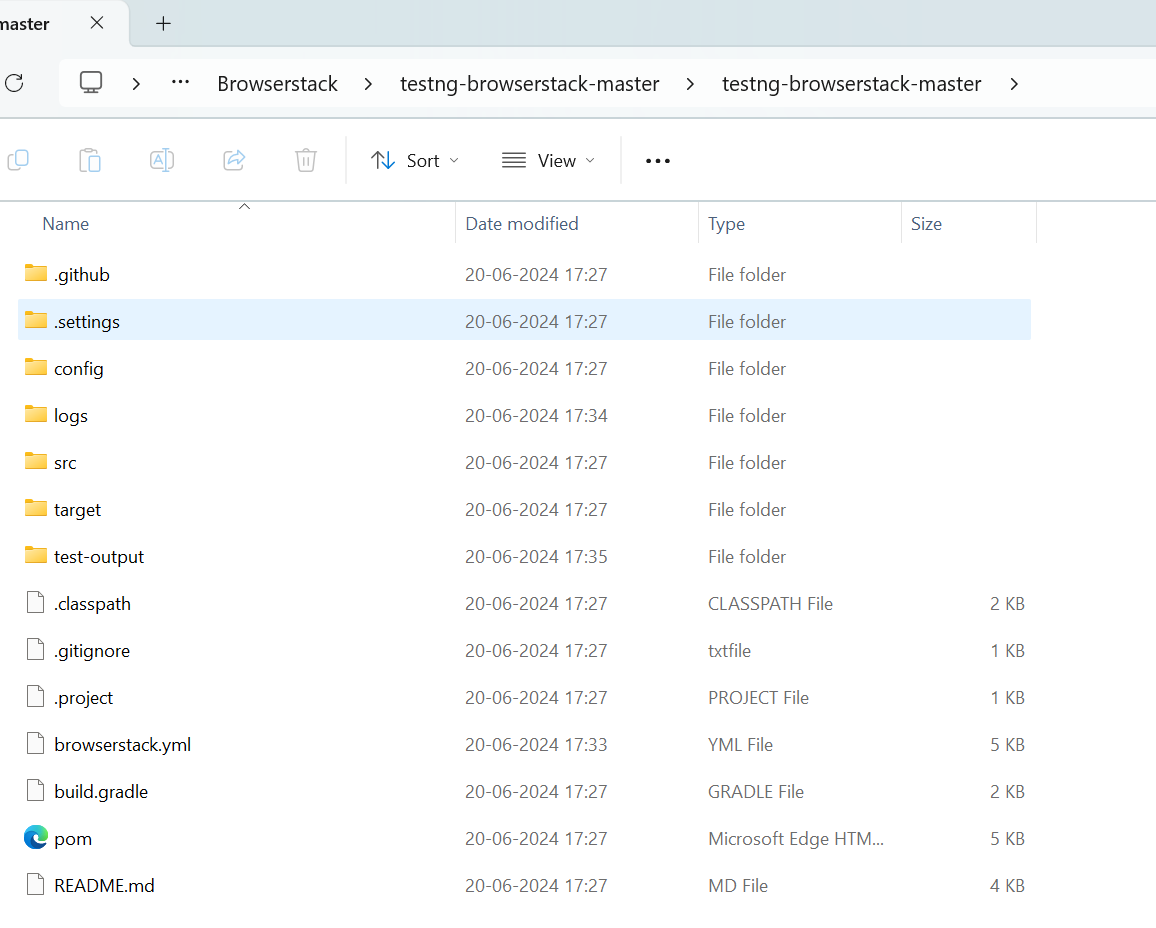
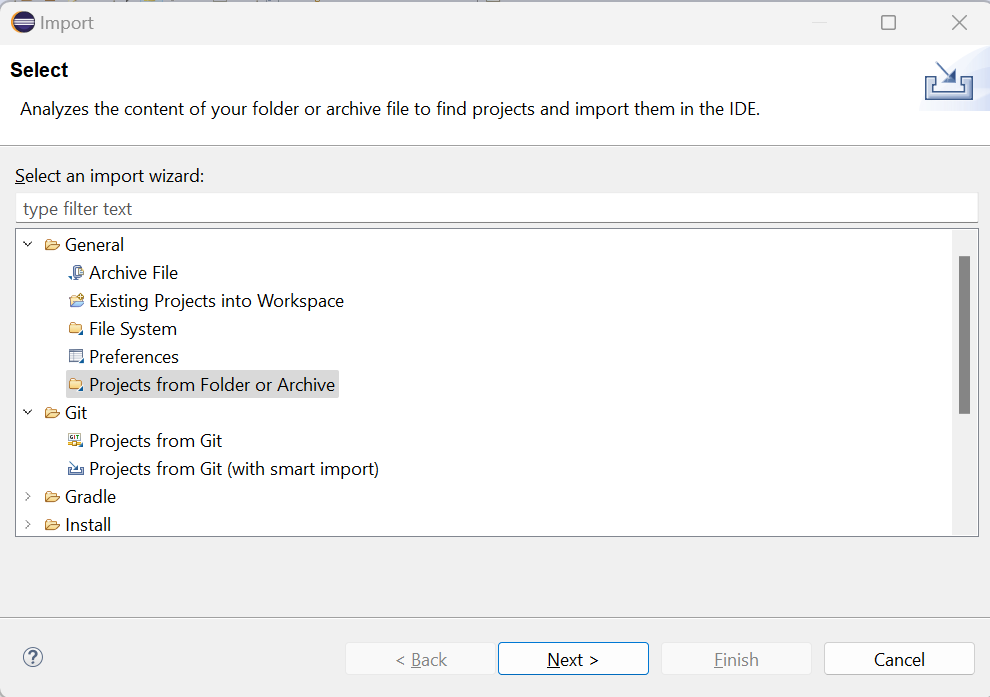
Step 3. Import the project in Eclipse via File-> Import -> General -> Projects from Folder or Archive in Eclipse.
Step 4. Once the project is imported it should have a structure like below. Open browser.yml file which contains all the required capabilities to run the tests on BrowserStack platform.
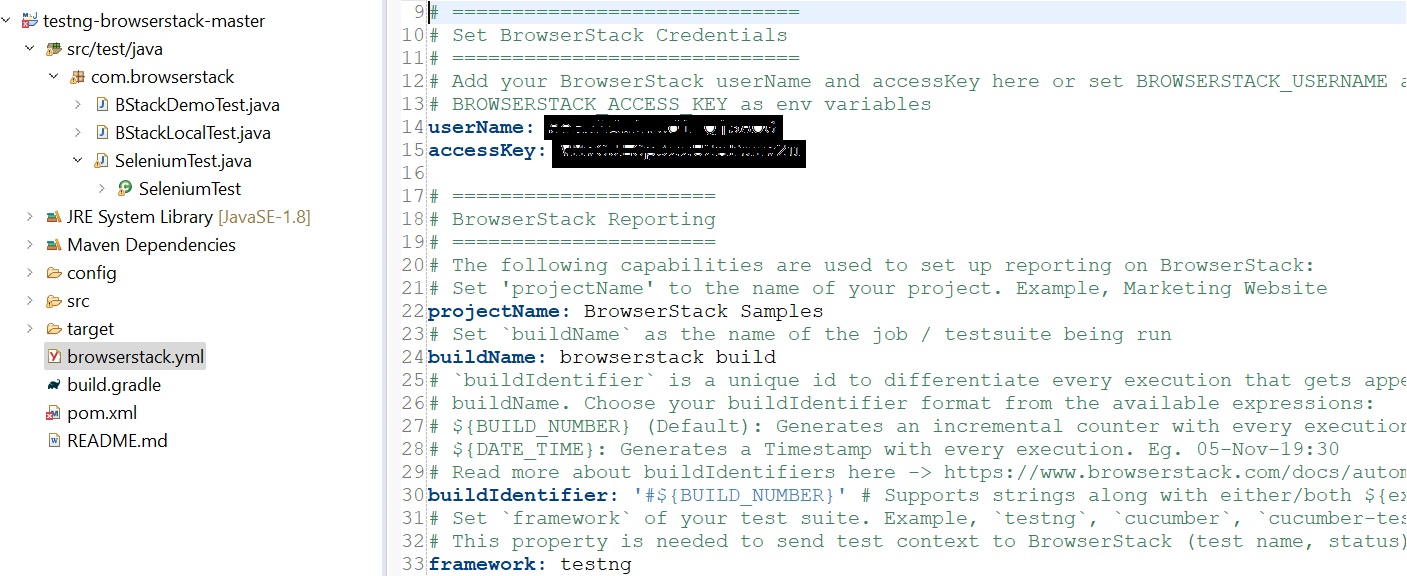
Step 5. Set username and password in the browserstack.yml file available at the root directory.
Step 6. You can run the test cases on multiple device and browser combinations available at the BrowserStack cloud. Select the required combinations from the Selection List.
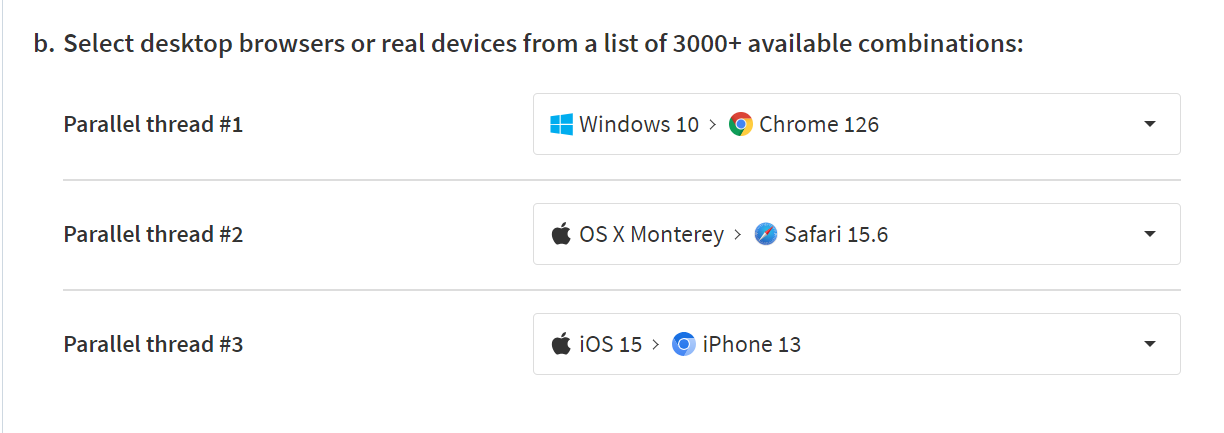
Step 7. Copy and replace the platforms object in the browserstack.yml file like below.
platforms:
- os: Windows

osVersion: 10

browserName: Chrome

browserVersion: latest
- os: OS X

osVersion: Monterey

browserName: Safari

browserVersion: 15.6
 - deviceName: iPhone 13

osVersion: 15

browserName: Chromium

deviceOrientation: portrait
This is for running the test cases on 3 combinations. If you wish to run only on a single device you may edit the platforms accordingly.
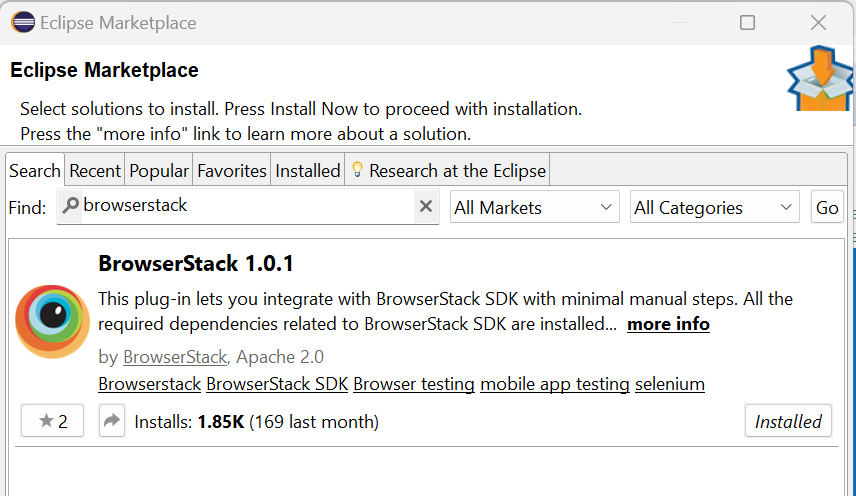
Step 8. In the Eclipse Marketplace, search for BrowserStack > click Install > Finish.
Step 9. Add the above ChromeTest program under src/test/java folder and com.browserstack package. This class should extend SeleniumTest as it has the setup and teardown methods. The simplified code is as below using BrowserStack SDK.
package com.browserstack;

import com.browserstack.SeleniumTest;

import org.testng.Assert;

import org.testng.annotations.Test;

public class ChromeTest extends SeleniumTest {

   @Test

   public void launchChrome() {

         // launching the specified URL

         driver.get("https://bstackdemo.com/");

         Assert.assertEquals(driver.getTitle(), "StackDemo");

   }

}
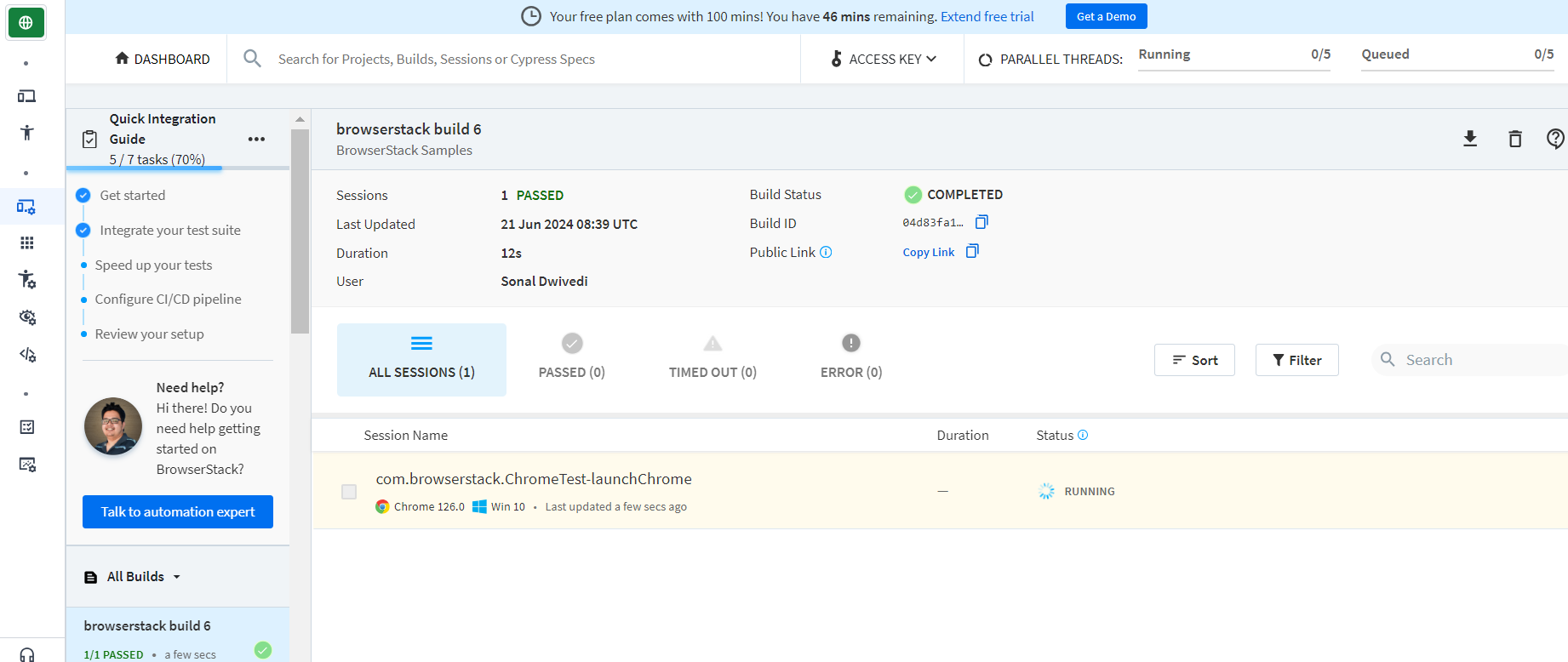
Step 10. Run ChromeTestas TestNG test and view the test result on Automate dashboard.
Best Practices for using Selenium ChromeDriver
Here are the key best practices to follow when using Selenium ChromeDriver:
- Cross-browser compatibility: Different browsers render web pages differently. Testing on real browsers ensures that the web application functions correctly across multiple browsers such as Chrome, Firefox, Safari and Microsoft Edge. To provide consistent experience across all the platforms, it is mandatory to test the web applications on different browsers.
- Parallel Testing: With BrowserStack’s Automate platform one can easily test the web application across different browsers in parallel in different platforms and devices. Due to parallel testing, execution time reduces which results in a faster time to delivery.
- Test on Real Devices: To check how the web application looks to an end user it is important to test it under real user conditions, which is why testing on real desktop and mobile devices help get more accurate test results.
- Take Screenshots and Video Logs: For better debugging and reproducing any failed test case, it is a good idea to get rich artifacts like Selenium Logs, Screenshots and Video Logs which you get with BrowserStack Automate.
Why run Selenium ChromeDriver Tests on Real Devices?
Running Selenium ChromeDriver tests on real devices and real browsers ensures that your application behaves as expected under real-user conditions.
BrowserStack Automate makes this possible by providing instant access to a wide range of real device–browser combinations, enabling accurate, reliable, and scalable testing.
Here’s why BrowserStack Automate is an ideal choice for executing Selenium tests on real devices and browsers:
- Parallel Testing for Faster Feedback: Automate supports extensive parallel testing, allowing teams to run multiple tests across different device–browser combinations simultaneously. This dramatically reduces overall execution time and speeds up feedback cycles.
- Testing on Real Devices and Browsers: Validating your application on real devices ensures true-to-life user experience and accuracy—something emulators and simulators cannot fully replicate. With Automate, you can instantly access the latest devices and browsers without maintaining a physical device lab.
- Comprehensive Test Dashboard: Each Selenium test run is captured in a dedicated dashboard that displays results, environment details, execution timelines, logs, screenshots, and video recordings. This helps teams monitor, debug, and analyze automation runs with clarity.
- Customizable Reports with Rich Artifacts: Automate allows the generation of detailed, customizable reports containing execution status, device and browser configurations, duration, screenshots, and session videos—enabling deeper insights and easier defect analysis.
- Seamless CI/CD Integration: BrowserStack Automate integrates smoothly with CI/CD tools like Jenkins, TeamCity, Travis CI, and more. This supports faster release cycles by enabling consistent, automated testing across diverse environments.
By running Selenium ChromeDriver tests on real devices through BrowserStack Automate, teams gain higher confidence in application stability, compatibility, and user experience, ensuring every release meets real-world standards.
Conclusion
Although it’s vital to test web-apps for Chrome, it’s also important for a web app to be optimized for other browsers like Firefox, Safari, Edge, etc. Teams can leverage BrowserStack, which enable QAs to perform cross browser testing for their web apps across thousand of real browsers and browser versions like Safari, Opera, Edge, etc. All real browsers are installed on real desktop and mobile devices, thus providing the optimal environment for software testing in real user conditions.