
A slow website is frustrating for visitors and bad for your business. When pages take too long to load, users leave, and your search rankings drop.
Often, the hidden problem is unused CSS code cluttering up your theme and plugins. This extra code adds weight to your pages without doing anything useful.
We have optimized hundreds of WordPress sites for speed and found that cleaning up this code makes a huge difference. It helps your site pass Core Web Vitals tests and improves the user experience.
In this guide, we will show you how to remove unused CSS in WordPress to make your site faster.
What Is Unused CSS in WordPress?
Unused CSS in WordPress refers to CSS code that gets loaded on your web pages but isn’t actually used to style anything visible on those specific pages.
This extra code forces visitors’ browsers to download and process unnecessary files, which slows down your page loading times. Even a few extra seconds can hurt your user experience and search engine rankings, potentially costing you visitors and conversions.
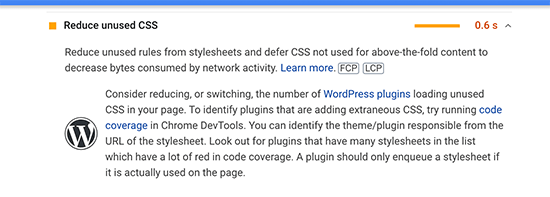
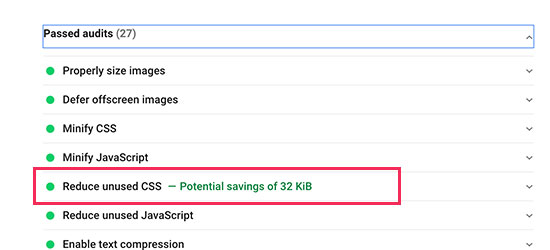
You can easily check if unused CSS is affecting your site by running it through Google Pagespeed Insights. Look for the ‘Remove unused CSS’ warning in your results. It will show you exactly which files are slowing things down.
Why Does WordPress Load Unused CSS?
Here’s the thing: WordPress wasn’t designed to be picky about which CSS it loads. Your WordPress theme comes with a master stylesheet (usually called style.css) that contains styling rules for every possible element, even ones you might never use.
But your theme is just the beginning. Every plugin you install adds its own CSS files to the mix. WooCommerce loads shop styling on every page (even your blog posts), page builders load their CSS globally, and contact form plugins load form styles on pages without forms.
Add in custom fonts, icon libraries, and other design elements, and you end up with a lot of CSS bloat. While each individual file might be small, they quickly add up and impact your site speed.
How to Remove Unused CSS in WordPress
Now for the good news: there are several effective ways to clean up unused CSS on your WordPress website. We’ve tested multiple approaches and found methods that work reliably without breaking your site.
Here’s what you need to know upfront: completely eliminating 100% of unused CSS is nearly impossible due to how WordPress dynamically loads content. Some CSS needs to stay ready for interactive elements, conditional content, and different page types.
But don’t worry, you don’t need perfection to see major improvements. Even removing 50-70% of unused CSS can dramatically speed up your site.
We’ll show you two proven methods that strike the right balance between performance gains and site stability, so you can choose the approach that fits your comfort level.
- Remove Unused CSS in WordPress Using WP Rocket
- Remove Unused CSS in WordPress Using Asset CleanUp
- Frequently Asked Questions About Unused CSS
- Additional Resources on Improving WordPress Performance
Method 1: Remove Unused CSS in WordPress Using WP Rocket
This method is easier and is recommended for beginners. It greatly improves the overall delivery of CSS files on your WordPress website, including removing most of the unused CSS.
We think it is the best solution for beginners because it is easier and achieves the main goal of providing a better experience for your users. This means your website loads fast on speed testing tools and also feels fast to your users.
First, you need to install and activate the WP Rocket plugin. It is a premium plugin, but it is the easiest way to get the job done without technical knowledge. For more details, see our step-by-step guide on how to install a WordPress plugin.
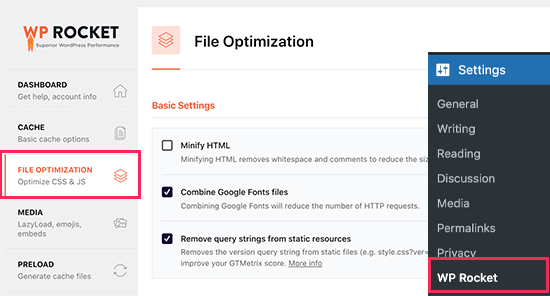
Upon activation, you need to visit the Settings » WP Rocket page and switch to the ‘File Optimization’ tab.
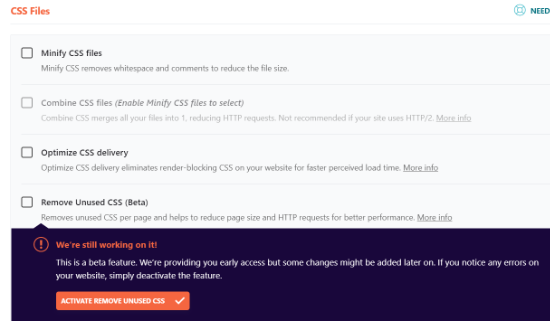
Next, you need to scroll down to the CSS Files section and then check the box next to the ‘Remove Unused CSS’ option.
Once you check the box, you may see a confirmation message. You can go ahead and click the ‘Activate Remove Unused CSS’ button.
Once the option is active, you will see a ‘CSS safelist’ box. This allows you to specify CSS filenames, IDs, or classes that should not be removed. You only need to use this if you notice that some parts of your site look broken after enabling the setting.
Simply enter them into the box.
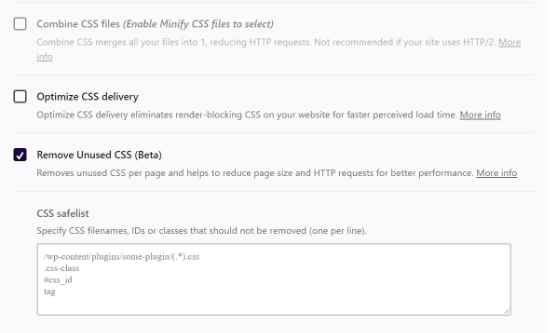
Next, you will need to save your changes by scrolling down and clicking the ‘Save Changes’ button.
When you do that, WP Rocket will start to process your CSS files and show you a progress bar.
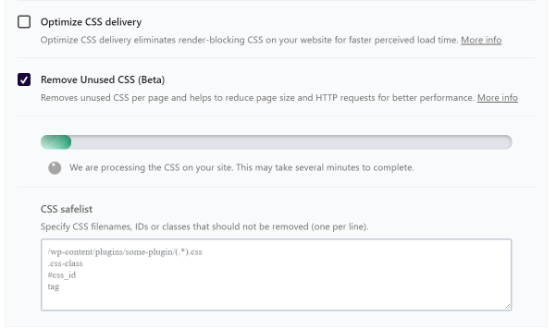
It will take a few minutes for the plugin to process and remove unused CSS files from your website.
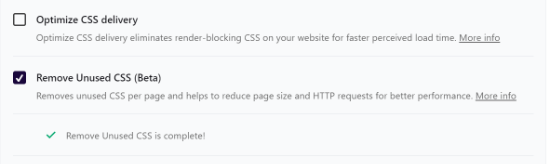
You will see a ‘Remove Unused CSS is complete!’ message when the plugin has completed the process.
Now, visit the Google Pagespeed Insights tool and test your site’s performance.
Alternative: Optimize CSS Delivery (Fallback Method)
If the ‘Remove Unused CSS’ method above works for your site, you do not need to do this step. It already handles render-blocking CSS for you.
However, if the previous method broke your site layout and you had to disable it, you can use the ‘Optimize CSS delivery’ option as an alternative.
To do this, simply check the box next to the ‘Optimize CSS delivery’ option in the CSS Files section.
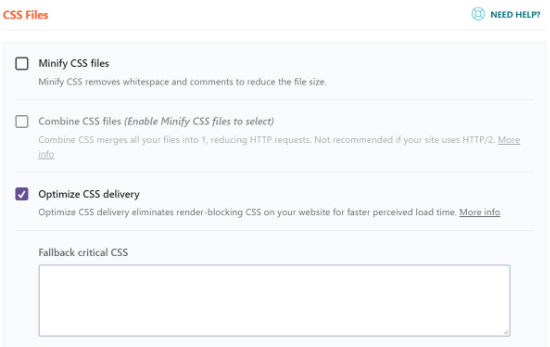
This option generates a CSS file that only contains the CSS code needed to display the visible part of your website. It loads that file first, displays the page to your visitors, and then loads other CSS files using a technology called deferred loading.
By removing this render-blocking CSS, your website becomes viewable to users much more quickly than it would if you had to load all the CSS files before the page is displayed.
After enabling the ‘Optimize CSS delivery’ option, click the ‘Save Changes’ button and wait for WP Rocket to generate the necessary CSS file for all your posts and pages. It will also automatically clear the cache for your website.
Once finished, you can go ahead and test your website performance again using Google Pagespeed Insights.
Additional File Delivery Tweaks to Boost Performance
WP Rocket also allows you to remove query strings from static files, combine Google Fonts files, and minify HTML.
All of these tweaks add tiny improvements to your overall speed, which adds up to a faster loading experience for your visitors.
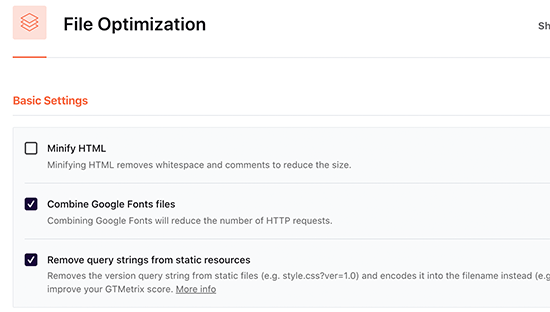
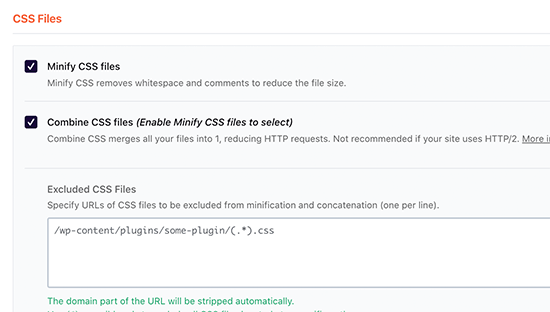
You will also see options to minify and combine CSS files. These options will reduce HTTP requests and give you an additional speed boost.
However, you will need to carefully check your website to make sure that nothing is broken after enabling these settings.
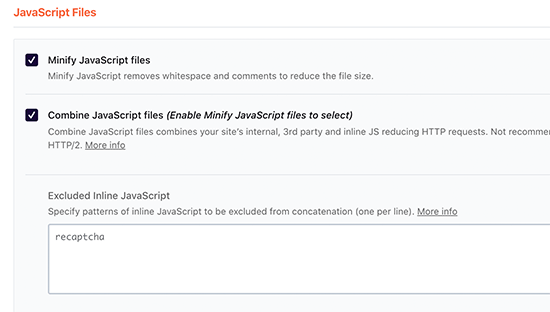
Additionally, you can apply the same optimization for JavaScript files on your website.
You can minify and combine them to serve as a single file and defer loading for JavaScript files to improve performance.
For more details, see our step-by-step tutorial on how to properly set up WP Rocket in WordPress.
Method 2: Remove Unused CSS in WordPress Using Asset CleanUp
This method uses the free Asset CleanUp plugin. It is a bit more manual but gives you full control to remove specific unused CSS from any page of your WordPress website.
We recommend this method if you are comfortable troubleshooting your site, as you will need to test your website thoroughly to make sure nothing is broken.
First, you need to install and activate the Asset Cleanup plugin. For more details, see our step-by-step guide on how to install a WordPress plugin.
Upon activation, you need to visit the Asset CleanUp » Settings page and switch to the Test Mode tab. From here, you need to turn on the ‘Enable Test Mode’ option.
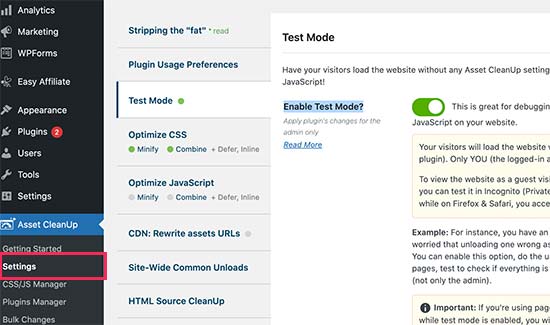
This allows you to try out different settings and test them as an administrator without affecting website visitors.
After that, you need to visit the Asset CleanUp » CSS/JS Manager page. From here, you can unload unwanted CSS and JavaScript files on a page-by-page basis.
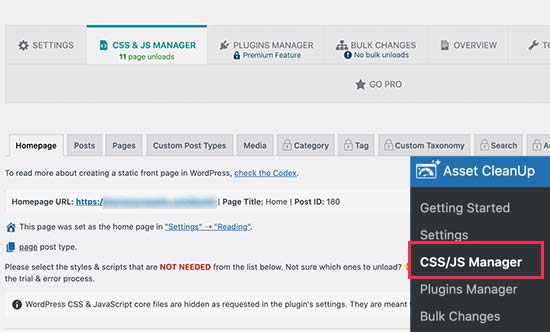
Depending on your settings, it may automatically fetch and analyze your homepage. You will see a list of all the CSS and JavaScript files loaded on that page.
You need to scroll down and review the loaded files. If you see a file that you don’t need, then you can unload it for that particular page, post type, or sitewide.
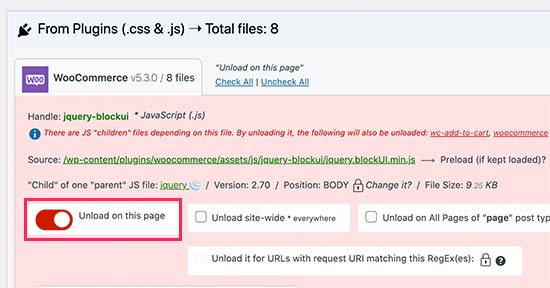
The plugin also allows you to choose specific posts or pages from here, or you can access the same options by editing the post or page as you normally would.
On the post edit screen, you will find the Asset CleanUp box just below the post editor.
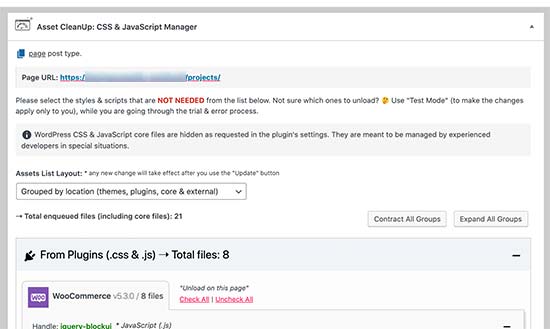
The plugin will automatically fetch and list all the files and assets loaded when a visitor views this page on your website.
You can then simply unload the unused CSS or JavaScript files that you don’t need on that page.
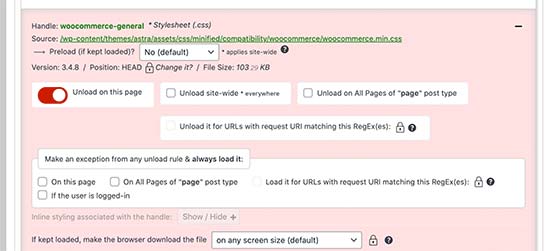
Important: Don’t forget to test your website after removing any unused CSS or JavaScript to make sure that everything is working fine.
Once you are done unloading and removing unused CSS and JavaScript files, you can go back to the plugin’s settings page and switch off the ‘Test Mode’.
Don’t forget to click on the ‘Update All Settings’ button to store your changes.
You can now test your website using Google Pagespeed Insights to see the change in the unused CSS notice.
Frequently Asked Questions About Unused CSS
Many readers ask us about the safety and impact of cleaning up their stylesheets. Here are the answers to some of the most common questions about removing unused CSS in WordPress.
1. Is it safe to remove unused CSS in WordPress?
Removing unused CSS is generally safe if you use a reputable plugin like WP Rocket or Asset CleanUp. These tools attempt to keep the essential code your site needs to look correct. However, because styling can be complex, there is always a small risk of breaking a layout.
We strongly recommend using a backup plugin like Duplicator to save your site before applying these changes.
2. Why can’t I remove 100% of the unused CSS?
It is nearly impossible to remove every single line of unused CSS because WordPress creates pages dynamically.
Some styles are hidden until a specific action happens, such as a mobile menu sliding out or a popup appearing. If you remove this ‘unused’ code, those interactive features will stop working.
If a plugin removed all CSS that wasn’t immediately visible, interactive features on your WordPress site might stop working correctly.
3. Does removing unused CSS help with SEO rankings?
Yes, removing unused CSS can help improve your WordPress SEO rankings. Search engines like Google consider page speed a ranking factor. When you reduce the size of your CSS files, your web pages load faster, which signals to Google that your site offers a good user experience.
4. Can I manually remove unused CSS without a plugin?
We do not recommend trying to remove unused CSS manually unless you are an experienced developer. You would need to identify and delete specific lines of code from your theme and plugin files.
If you make a mistake while editing these files manually, you could break the design of your entire WordPress website.
Additional Resources on Improving WordPress Performance
We hope this article helped you learn how to easily remove unused CSS in WordPress. You may also want to see some other guides related to improving WordPress performance:
- The Ultimate Guide to Boost WordPress Speed & Performance
- How to Speed up WooCommerce Performance
- How to Properly Run a Website Speed Test (Best Tools)
- Important Metrics to Measure on Your WordPress Site
- How to Optimize Core Web Vitals for WordPress (Ultimate Guide)
- How to Use GTmetrix Plugin to Improve WordPress Site Performance
- How to Easily Optimize WordPress CSS Delivery
- Fastest WordPress Hosting (Performance Tests)
- How to Optimize Images for Web Performance Without Losing Quality
- Best WordPress Caching Plugins to Speed Up Your Website
If you liked this article, then please subscribe to our YouTube Channel for WordPress video tutorials. You can also find us on Twitter and Facebook.




Jiří Vaněk
Practically every time, PageSpeed Insights warns me about this. I never paid attention to it because I simply didn’t know how to fix it without breaking my site. This guide is a treasure for me, especially since I also use WP Rocket. I’ll back up the site, just to be safe, and try the solution you suggested. I’m curious to see if, after two years of blogging and ignoring this warning, it will make a difference and how much. Nonetheless, thank you for the first clear guide I’ve come across.
kzain
I’ve been wanting to improve my website’s speed, and removing unused CSS sounds like a great place to start. The breakdown between using optimization plugins and manual identification is perfect. While I’m not super code-savvy, the plugin recommendations are a lifesaver. WP Rocket and Asset CleanUp sound like great options to explore. Thanks for this informative guide!
WPBeginner Support
You’re welcome!
Admin
Dennis Muthomi
My current caching plugin doesn’t have an unused CSS removal feature.
Would it be beneficial to install WP Rocket solely for this function?
Just to use the Remove Unused CSS feature
THANKS
WPBeginner Support
We would recommend reaching out to the support for your current caching plugin to see if the setting is enabled through a different method for the plugin you’re using. If you wanted to use WP Rocket then it would be best to replace your current caching plugin.
Admin
Steve
I like to remove unused CSS from my site. I am already running the Litespeed cache. I am thinking to use WP Rocket or Asset clean up to do it (I am towards WP Rocket). Is any conflict between these plugins and Litespeed? Thank you!
WPBeginner Support
You would want to reach out to the support for the individual plugins to check for any current conflicts between them.
Admin
Paul Barrett
This may be wishful thinking of the highest order but this article reminded me of something that I’ve wondered about for a while.
One of my complex websites is now four years old and has gone through a steady process of evolution. There is not only unused CSS but media, templates, pages. Is there any plugin to take a website inventory and tell me ALL the unused assets?
WPBeginner Support
We do not currently have a tool for everything but the tool from this article would help with CSS and our guide below should help for the media library!
https://www.wpbeginner.com/plugins/how-to-clean-up-your-wordpress-media-library/
Admin