
Visual bugs can slip into your UI even when your functional tests pass. Visual regression testing using Playwright helps you catch these unexpected changes early by automating the process and comparing your application’s appearance across builds.
Overview
What Playwright Visual Testing Does?
Playwright ensures consistent UI appearance across browsers by comparing screenshots against a saved baseline and highlighting layout shifts, color mismatches, or styling changes through pixel-by-pixel diffing.
How Does Visual Testing Work in Playwright?
- Capture Screenshots: Playwright takes screenshots of full pages or specific elements during test runs.
- Create Baseline Images: The first test run saves a “golden” baseline snapshot representing the expected UI.
- Compare Against Baseline: Future runs capture new screenshots and compare them pixel-by-pixel with the saved baseline.
- Detect Differences: If visual mismatches appear, the test fails and Playwright generates a visual diff showing exactly what changed.
How to Implement Visual Tests?
- Install Playwright using the standard setup flow.
- Run tests that take screenshots and assert expected visuals using Playwright’s built-in snapshot comparison.
- Review failures by checking the diff image and decide whether to fix the UI or update the baseline.
This article explains how to use Playwright for visual regression testing by capturing, comparing, and validating UI snapshots.
What is Visual Regression Testing?
Visual regression testing is a method used to detect unintended visual changes in a web application’s interface after code updates. It captures screenshots of web pages and compares them with baseline images from previous versions.
If there are differences, such as changes in layout, colors, or missing elements, the test highlights them for review. Unlike functional testing, which checks how the application works, visual regression testing ensures that its appearance stays consistent across releases.
Why Use Playwright for Visual Testing?
Playwright is a strong choice for visual testing because it provides fast, reliable, and browser-consistent screenshot comparisons built directly into its test runner. It helps teams verify UI stability across Chromium, Firefox, and WebKit without relying on external tooling.
Key Reasons to Use Playwright:
- Built-in Visual Assertions: Playwright offers native snapshot testing, making it easy to capture, store, and compare baseline images without additional libraries.
- Cross-Browser Accuracy: Tests run across three major browser engines, ensuring visual consistency on Chromium, Firefox, and WebKit.
- Stable and Predictable Rendering: Automatic waiting, deterministic rendering, and control over animations help reduce flaky visual tests.
- Flexible Screenshot Options: Capture full pages, specific elements, or masked areas to avoid noise from dynamic content.
- Smooth CI Integration: Playwright’s test runner integrates cleanly with CI pipelines, so visual regression checks can run with every build.
- Extensible with Tools Like Percy: For teams needing advanced review workflows or cross-device coverage, Playwright works seamlessly with Percy’s visual testing platform.
Create Simple Visual Tests using Playwright
In your tests folder, create a new javascript file example demo.spec.jspage.screenshot() function takes the screenshot, and expect in the @playwright/test module provides the assertion for matching the images that are .toMatchSnapshot().
Note: This tutorial consistently uses Playwright with JavaScript for all examples and instructions.
Inside the newly created javascript file, create a new test that performs the visual comparison like below.
// example.spec.js

const { test, expect } = require('@playwright/test');

test('Visual Comparison Test Demo', async ({ page }) => {

  await page.goto('https://playwright.dev');

  expect(await page.screenshot()).toMatchSnapshot();

});
In the above code, we navigate to the official Playwright website and compare visually by taking a snapshot.
Run your First Visual Regression Tests
Run your visual comparison tests using the below command
npx playwright test
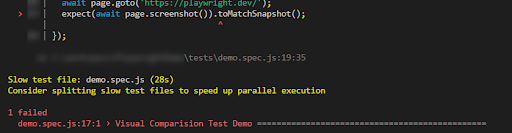
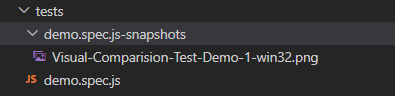
The first time the test is run, it fails, as there is no base image.
As seen below, the directory containing the base image file gets created inside the tests folder.
Run the Spec again; it passes
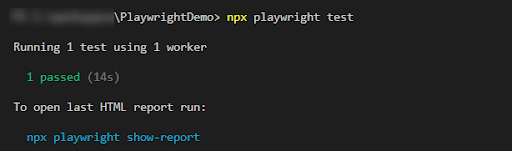
Visual Snapshot Comparison in Playwright Ignore Minor Differences
The above comparison technique matches the screenshot pixel by pixel, which means each pixel should match exactly. This behavior can be modified by passing the argument maxDiffPixels = <pixel_value>.
Example:
const { test, expect } = require('@playwright/test');

test('Visual Comparison Test Demo', async ({ page }) => {

  await page.goto('https://playwright.dev');

  expect(await page.screenshot()).toMatchSnapshot({ maxDiffPixels: 200 });

});
In the above example
We have specified the maxDiffPixels value as 200, which means the maximum pixel difference can be 200.
Image Comparison in Playwright with Threshold option
Playwright toMatchSnapshot() accepts threshold, threshold ranges from 0 to 1, default value is 0.2. The threshold is tolerance of image differences.
Example Code:
const { test, expect } = require('@playwright/test');

test('Visual Comparison Test Demo', async ({ page }) => {

  await page.goto('https://playwright.dev/');

  expect(await page.screenshot()).toMatchSnapshot({threshold:0.5});

});
In the above code, the threshold is mentioned as 0.5.
How to fix visual testing challenges in Playwright?
Playwright visual tests can become fragile if not configured correctly. Below are the most effective ways to fix common visual testing challenges and keep your snapshots stable.
- Freeze dynamic content: Mask timestamps, ads, random IDs, and user-specific sections to prevent unnecessary diffs.
- Target specific elements: Compare key components instead of full pages to reduce noise.
- Stabilize rendering: Preload fonts and assets or bundle them in CI to keep rendering consistent.
- Disable or wait for animations: Turn off animations in test mode or wait for them to finish before taking screenshots.
- Use consistent environments: Fix viewport size, browser version, and OS settings in CI for stable results.
- Set tolerances using threshold and maxDiffPixels: Allow minor anti-aliasing or sub-pixel differences where appropriate.
- Mask or crop noisy regions: Mask unstable areas or crop screenshots to avoid headers, footers, or changing elements.
Visual Testing with Playwright using Percy
BrowserStack is a cloud testing platform that provides access to real browsers and devices for automated and manual testing. Percy, part of the BrowserStack suite, is a visual testing tool that captures and compares screenshots to detect UI changes. It integrates seamlessly with Playwright, allowing teams to include visual regression checks in their end-to-end tests.
Below is a step-by-step guide to implementing visual testing using Percy with Playwright:
Step 1: Install Percy Modules
Install the required Percy dependencies for Playwright by running:
npm install --save-dev @percy/cli @percy/playwright
Step 2: Write a Playwright Test with Percy
Create a test file (such as demo.spec.js) with the following content:
const { chromium } = require('playwright');

const percySnapshot = require('@percy/playwright');

(async () => {

  const browser = await chromium.launch();

  const page = await browser.newPage();

  await page.goto('https://www.browserstack.com/', { waitUntil: 'networkidle' });

  await percySnapshot(page, 'Example Site');

  await browser.close();

})();
This script launches a browser, navigates to the URL, takes a snapshot using Percy, and closes the browser.
Step 3: Set Up a Percy Project
Log in to Percy, create a new project, and copy the Percy Token generated.
Step 4: Set the Percy Token
Set the PERCY_TOKEN environment variable in your terminal:
- PowerShell / VS Code Terminal
$env:PERCY_TOKEN = "your_token"
- Windows Command Prompt
set PERCY_TOKEN="your_token"
- Unix / Linux / macOS
export PERCY_TOKEN="your_token"
Step 5: Run the Test with Percy
Execute your test using the Percy CLI:
npx percy exec -- node tests/demo.spec.js
Replace tests/demo.spec.js with the actual path to your test file.
Step 6: Review Visual Results
Once execution finishes, Percy will log a build URL to the console. Open this URL in a browser to review the snapshots.
- If no changes are found, Percy will show a “No Changes” status.
- If visual differences are detected, Percy will display a side-by-side comparison highlighting the changes.
Why Use Percy for Smarter Visual Tests in Playwright?
Percy by BrowserStack brings AI-powered accuracy to Playwright’s visual regression testing, helping teams catch meaningful UI changes with speed and confidence. It filters out visual noise and surfaces only real UI changes, speeding up reviews and maintaining a consistent user experience.
- Effortless Visual Regression Testing: Integrates into CI/CD pipelines with a single line of code and works smoothly alongside Playwright test suites, Storybook, and Figma to support true shift-left visual testing.
- Automated Visual Regression: Captures screenshots on every commit, performs side-by-side comparisons, and instantly flags issues such as layout shifts, styling mismatches, or component breakages.
- Visual AI Engine: Percy’s AI engine intelligently filters out noise from dynamic content, animations, anti-aliasing, and other unstable elements. Features like Intelli Ignore and OCR focus only on changes that impact real user experience, reducing false positives significantly.
- Visual Review Agent: Highlights visual diffs with bounding boxes and provides human-readable summaries, making reviews up to 3× faster and helping teams quickly understand the scope of UI changes.
- No-Code Visual Monitoring: Visual Scanner enables rapid, no-install monitoring across thousands of URLs on 3,500+ browser/device combinations. Trigger scans on-demand or on a schedule, ignore dynamic regions, and instantly compare staging and production environments.
- Flexible and Comprehensive Monitoring: Schedule scans hourly, daily, weekly, or monthly; review historical results; compare environments; and even test behind authentication or local environments to catch issues before release.
- Broad Integrations: Compatible with major frameworks, CI tools, and SDKs to ensure quick adoption and easy scaling across teams using Playwright and beyond.
App Percy brings the same intelligent visual testing to native iOS and Android apps, running tests on real devices to ensure pixel-perfect consistency while handling dynamic UI regions to reduce flakiness. With a plug-and-play setup that requires just one line of code, it supports Appium, WebdriverIO, Java, Python, and more, and offers scalable parallel execution for up to 10× faster builds, along with a unified dashboard that provides logs, screenshots, videos, and strong privacy compliance.
Pricing details:
- Free Plan: Up to 5,000 screenshots/month—ideal for small projects or getting started.
- Paid Plan: Starts at $199/month with advanced capabilities and custom enterprise options available.
Playwright Visual Comparison Tips & Tricks
Here are some valuable tips and best practices to improve accuracy and efficiency when performing visual comparisons using Playwright:
- Use Stable Selectors: Avoid dynamic or frequently changing elements in screenshots, such as timestamps or animations, as they can cause false positives.
Read More: Playwright Selectors: Types
- Set Consistent Viewports: Always define a fixed viewport size to ensure consistent rendering across runs. This helps avoid differences due to screen dimensions.
- Mask Unstable Elements: Mask or hide elements that change frequently (like ads or user-specific data) using Playwright’s mask or ignore options during screenshot comparison.
- Wait for UI Stability: Use proper wait conditions, such as page.waitForSelector() or page.waitForLoadState(), to ensure the page is fully loaded before capturing screenshots.
- Compare Specific Elements: Instead of full-page screenshots, compare specific sections or components to narrow the scope and reduce noise.
- Use Thresholds Wisely: Set an appropriate pixel difference threshold to allow minor acceptable differences, especially for anti-aliasing or rendering quirks across browsers.
- Run Tests in Headless Mode: Consistently run visual tests in headless mode to avoid UI differences caused by OS-level rendering or browser UI.
- Review Baseline Images Carefully: Always validate and approve your initial baseline images, as all future comparisons will use them as the reference.
Conclusion
Visual regression testing using Playwright allows teams to automatically capture and compare UI snapshots, making it easier to detect visual bugs before they reach production. With features like automated screenshot comparison and support for multiple browsers, Playwright simplifies maintaining a consistent user interface across releases.
When combined with BrowserStack, visual testing becomes even more powerful. Percy enhances Playwright tests by providing cloud-based visual comparisons, an easy-to-use dashboard, and cross-browser coverage on 3,500+ real Android, iOS, Windows, and macOS devices.
Useful Resources for Playwright
- Playwright Automation Framework
- Playwright Java Tutorial
- Playwright Python tutorial
- Playwright Debugging
- End to End Testing using Playwright
- Visual Regression Testing Using Playwright
- Mastering End-to-End Testing with Playwright and Docker
- Page Object Model in Playwright
- Scroll to Element in Playwright
- Understanding Playwright Assertions
- Cross Browser Testing using Playwright
- Playwright Selectors
- Playwright and Cucumber Automation
Tool Comparisons:
- Playwright vs Puppeteer
- Playwright vs Cypress
- Playwright vs Selenium
- Cypress vs Selenium vs Playwright vs Puppeteer
Frequently Asked Questions
1. What is Playwright visual testing?
Playwright visual testing compares screenshots of your application against approved baseline images to detect unintended visual changes in layout, styling, colors, and component rendering.
2. How does Playwright perform visual regression checks?
Playwright captures screenshots, saves an initial baseline, and compares future screenshots pixel by pixel. If differences exceed the allowed tolerance, the test fails and a diff image highlights the changes.
3. How is visual testing different from functional testing?
Functional tests verify behavior, while visual tests verify appearance. An element may function correctly but still be visually broken, which visual testing helps detect.
4. What are the benefits of using Playwright for visual testing?
It helps catch UI regressions early, ensures consistent design, improves confidence during refactoring, supports multiple browser engines, and integrates easily into CI/CD pipelines.
5. Why do Playwright visual tests fail unexpectedly?
Common causes include dynamic content, animations, inconsistent viewports, missing fonts, environment differences, and sub-pixel rendering variations.